Planners & Trackers · Oct 6, 2026 · 11 min read
Wedding Guest List Setup: Record Households, RSVPs, Meal Counts, and a Table Plan
A practical setup for the wedding guest list workbook: confirm the Excel tabs and printable quick start, record households without losing individual replies, keep invited counts separate from confirmed meals, and assign tables only after the reply list is stable.
Name the list job before you fill every tab
A wedding guest list has to answer more than one question. How many invitations are you sending? Who has replied? Which meal does each attending person want? Which table will they sit at? Those questions share names, and they do not share one number.
Write the job in one sentence before you open the workbook. A useful sentence is specific: you need a household invitation list, a reply status for each named guest, a meal count that matches the people who said yes, and a table plan you can print for the reception. If the sentence is only that you need a seating chart, you will start assigning chairs before you know who is coming.
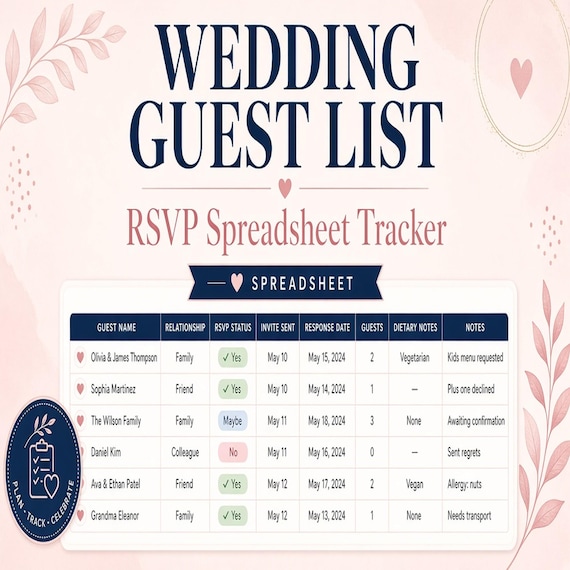
This SteadyStackStudio workbook is built for that wedding list job. It is an Excel file with guest list, RSVP, table planning, meal counts, gifts, and dashboard tabs, plus Google Sheets import instructions, a printable quick-start guide, sample guest rows, and editable formulas. It is a planning template. It does not know your venue capacity, your caterer's deadline, or which details a guest would rather keep private. You still have to check those.
If the missing job is a pro arrival timeline, a ceremony script, or a floral production plan, stop here and use the guide for that job. Filling a guest list will not build a run of show.
Confirm what the current download includes
Open the listing preview and the quick-start note before you treat any tab as finished. The current download includes an XLSX workbook, a PDF quick-start guide, and a README and license note. The workbook tabs named in the listing are guest list, RSVP, table planning, meal counts, gifts, and dashboard. Sample guest rows and editable formulas are included so you can see how a row behaves before you type your own names.
Google Sheets import instructions are included. Pick one working home for the live list: Excel or Google Sheets. Do not keep two copies and edit both. A reply typed into the spreadsheet and a different reply typed into a sheet that was imported last week will not reconcile themselves.
The PDF quick start is the instruction page. It is not the guest list. Do not write names on a printout of the instructions and call that the master. The gifts tab is part of the same workbook, not a second guest list. Use it for gift notes that belong with a household. Do not retype the whole invitation list there.
Keep one master and one working copy
Save the downloaded workbook as a master before you change a formula or delete a sample row. Name the working copy with the couple and the date, then do the setup in that copy. If a formula stops making sense, you can return to the master instead of rebuilding the file from memory.
The listing says the formulas are editable. That is useful after you understand them. It is a poor first step. Leave the formulas alone until one sample household has moved from the guest list tab to an RSVP status, a meal note, and a table assignment without you typing the same name in four places.
If more than one person will update replies, agree who may edit the working copy. A shared link and a private spreadsheet edited on a laptop will drift. One working copy, one person responsible for the latest save, and a short note of when the last reply was entered is enough.
Record households without erasing individual replies
The intended use is to enter guest names and households. Those are two different facts. A household is the invitation unit: the people who share one invitation and, usually, one mailing address. A name is the person who can say yes or no.
Decide that unit before the first invitation goes out. If two people are invited together, the household label should keep them together for addressing and for the table conversation. The reply record still needs to show that one person accepted even if the other declined. A single yes for the household hides that split, and the meal count will be wrong by one.
Try three invitations before you enter the full list. One should be a couple. One should be a single guest. One should be a household where another adult or a child might be included. Write the household label and every invited name. If you cannot tell, from that record, how many people were invited and which of those people could still decline, the record is not ready.
Do not add an extra guest after the invitation is out because a row has empty space. If a guest may bring someone, decide that before you send the invitation and record the offered seat with the household. An offered seat is not the same as a confirmed name.
Keep the invited count separate from confirmed attendance
The number of people you invited is the planning ceiling. The number of people who said yes is the number you can hand to a caterer. Those counts have to stay visible at the same time. If a reply overwrites the invited count, you cannot explain why a long invitation list became a smaller meal count.
Use the RSVP tab for status, not as a new list of names. A clear status is attending, declined, or no reply yet. Probably is not a status you can seat. If someone says they will try, leave them as no reply until they give a yes or a no, and note the date you asked.
Set the guest reply date from the pro date, not from a guess. Ask the venue and caterer when the guaranteed count is due. Put the guest reply date earlier than that, with enough days left to chase missing replies and correct a meal mistake. A common planning window is about ten to fourteen days before that guaranteed count. The workbook will not calculate the date for you. Write it where you will see it each time you open the working copy. Do not assume a blank cell is a labeled deadline field.
When the deadline passes, look for households with no reply and contact those invitations directly. Do not convert silence into a yes. A silent row is still an open question, not a plated meal.
Match meal choices to the people who are actually coming
The workbook includes meal-count tracking and is meant to record meal choices. Record a meal only for a person marked attending. A declined guest does not need a plate. An invited person who has not replied does not yet have a confirmed meal.
The check is simple. Count the people marked attending. Count the meal choices attached to those same names. The two counts should match. If they do not, you have a missing choice, a choice left on a declined name, or a household yes that never split into people.
If the kitchen also needs a dietary note, keep it with that person's meal record rather than in a text thread. The listing describes meal choices and meal counts. It does not promise a separate dietary column. If the RSVP tab has a note you can keep next to the meal, use that. If it does not, keep a short paired list that uses the same guest name, and say so in the day-of packet so the kitchen is not hunting through messages.
Do not rename meals in the middle of replies. If the caterer changes a general label to a specific dish, update the label once and apply it to the choices already collected. Two labels for the same plate will make the meal-count tab look larger than the room. Print the meal summary from the workbook when the reply list is stable. Do not rebuild the count in a new document the night before. A rebuilt list is where a name gets dropped.
Assign tables only after the reply list is stable
Table planning is its own tab because seating is a later job. Assign tables and seats after you know who is attending. A draft table for a household that later declines wastes a seat and pushes someone else to the wrong side of the room.
Before you assign anyone, write down the room limits the venue actually confirmed: number of tables, seats per table, and any table that cannot be used. The spreadsheet does not know that a sweetheart table, a band, or a cake table removes seats. If the attending count is higher than the seats you can place, fix the count or the floor plan before you start placing names.
Seat by household first. Keep people who were invited together at the same table unless they asked otherwise. Then check the awkward splits: a guest who declined inside an otherwise attending household, a late confirmed name, and anyone who needs a specific location for access. Access needs belong in the plan you hand the venue, not only in a private note you forget to print.
The table plan is not finished when every name has a table number. It is finished when the seat count on the table-planning tab matches the attending count on the RSVP tab, and both match the meal count. Three different totals means one tab is stale.
Give the workbook, quick-start PDF, and printed summaries different jobs
The Excel or Google Sheets file is the working record. The PDF quick start explains how to begin. The day-of printouts are the table and meal summaries the listing says you can print. Do not ask a coordinator to edit the spreadsheet at the reception if a printed summary would do.
When you print, print from the working copy after the last reply change, and write the print time on the page. A summary printed on Tuesday is not a summary of Friday's changes. If a reply arrives after you print, update the workbook first, then print again. Do not correct only the paper.
The dashboard tab is a summary view. Use it to see whether replies, meals, and tables are in range. Do not type new guest names into the dashboard if the guest list tab is where names belong. One home for each fact keeps the formulas honest.
Gifts do not belong on the seating card. If you track gifts in this workbook, keep them on the gifts tab and out of the packet you hand a pro. A caterer needs meals. A coordinator needs tables and timing. A gift note is for the couple, later.
Protect guest details and check the room before you trust a count
Guest names, addresses, meal notes, and gift notes are private. Share the smallest export that the next person needs. A florist does not need the full RSVP workbook. A day-of coordinator may need the table and meal summaries, not the gift tab. The listing asks you to verify guest privacy before you rely on the final lists. That check is yours.
Also verify venue and table capacity, pro requirements, and the logistics that change a count: ceremony-only guests, reception-only guests, pro meals, and children if they are invited. If those groups eat different meals or sit in different places, they need a label you can sort, not a guess added at the end.
This file is not a contract with the venue or the caterer. A dashboard total is a planning figure. The guaranteed count is whatever you confirm with the pro, in the form they require, by their deadline. If their form disagrees with the workbook, reconcile the names before you send the form. Do not send a total you cannot trace back to attending names.
Choose this workbook or a neighboring planner
Use this wedding guest list workbook when the job is households, RSVPs, meal counts, gifts, and a reception table plan in Excel or Google Sheets.
Use the quinceañera planner when the celebration needs a budget, padrinos, seating, and an event-day packet for that family event. It is a different invitation list, not a second copy of this wedding file.
Use the day-of coordinator timeline when the missing job is pro arrivals, printed run cards, and a handoff packet for the person running the day. That workbook does not replace the guest list. It should receive the table and meal summaries after this list is stable.
Use the wedding officiant planner when the job is the ceremony questionnaire, script, and rehearsal. Use the florist stem-count workbook when the job is design recipes and delivery, not chairs. Use the family reunion planner when the event is a reunion with an itinerary and shirt orders rather than a wedding reception table plan.
If you only need a budget and the guest list is already settled elsewhere, do not open this file to store a headcount you will not maintain.
Test one sample household before you replace the examples
The download includes sample guest rows. Use them. Change one sample household from invited, to a split reply, to a meal choice for the person attending, to a table assignment. Then look at the meal-count tab and the dashboard. If the attending count, the meal count, and the seated count do not agree, stop and find the tab that did not update. Do not paste your full list over a sample that already fails this test.
After the sample behaves, delete or replace the sample rows in the working copy only. Keep the master untouched. Enter a small real batch next: ten households, not the entire family tree. Check addressing labels, reply status, and one table. If that batch is clear, continue.
If you import into Google Sheets, run the same sample test after the import. An import can move values and leave a formula behind. The import instructions are there so you can follow them. They are not a promise that every formula survives a casual paste into a new sheet.
Use this fit check before you open the listing
You are ready to use this download when you can say yes to each line. You need one wedding list for households, named replies, meals, gifts, and tables. You will keep a master file and edit one working copy in Excel or Google Sheets, not both. You can tell an invited count from a confirmed attending count.
You will record a meal only for someone marked attending, then match that count before you print. You will assign tables after replies are stable, and you will check those seats against the venue's real capacity. You will print table and meal summaries from the workbook and keep gift notes out of the pro packet.
You also know this is a planning template, not a venue contract or a caterer's guarantee. If one of those lines is the actual problem and this workbook does not cover it, use the neighboring planner instead of forcing the guest list to do that job.
Printables used in this guide
Instant downloads from the SteadyStackStudio Etsy shop.
Wedding Guest List Spreadsheet
Plan RSVPs, seating, meals, gifts, and day-of lists in one workbook. This is an instant digital download designed for buyers who…
Quinceanera Planner Spreadsheet
Quinceanera Planner Spreadsheet with Quince Budget, Guest List, Seating Chart, Mis Quince Checklist Excel PDF.
Wedding Officiant Ceremony Planner
Guide each couple from first inquiry through story interview, ceremony outline, script review, rehearsal, day-of coordination…
Florist Spreadsheet
Florist stem count spreadsheet for wedding and event florists: Excel-first workbook with stem inventory, wedding recipe cards…