Clipart PNG · Aug 11, 2026 · 14 min read
Individual PNG Clipart vs PNG Artwork Sheets: Which File Package Fits Your Project?
A practical comparison of separate transparent PNG elements, mixed clipart bundles, and finished PNG artwork sheets, with checks for editing, printing, cutting, and final proofing.
PNG names a file format, not the way a bundle is packaged
Two products can both say PNG clipart and still require very different workflows. One download may contain a separate transparent file for each mushroom, shell, mug, or symbol. Another may contain a complete sheet with several designs arranged together. A third may include both sheet exports and a limited group of individual crops. The letters PNG alone do not tell you which structure you will receive.
Start with the action you need to perform after download. If you want to place one design on a label, move it independently, and change the spacing around it, a separate element is usually the simplest starting point. If you want to print, review, or display a coordinated page exactly as arranged, a finished artwork sheet may be the better fit. If you need both jobs, look for a mixed package and read its limits carefully.
This distinction matters before checkout because separating artwork from a finished sheet can require extra editing, may leave rough edges, and may not be allowed or practical for every design. A clear included-file list is more useful than a product title that uses PNG without explaining the package.
- Individual element: one design can be placed and moved without bringing the rest of the sheet with it.
- Artwork sheet: several designs are already arranged together as one finished image.
- Mixed package: sheets and some separate crops are included, but the exact individual-file coverage still needs to be confirmed.
- Unknown structure: pause when the previews and description do not say whether files are separate or grouped.
Use the current file lists to recognize three real package structures
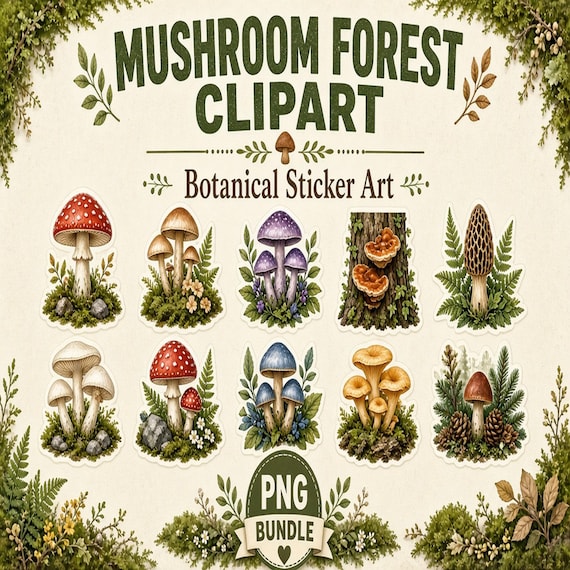
The current SteadyStackStudio catalog shows why a file-by-file check is useful. The featured Mushroom Forest pack describes three full clipart sheets as JPG files, three transparent-background PNG sheet exports made from the same artwork, individual transparent PNG crops where clean separation was possible, and a README or license note. That is a mixed package: it includes complete sheets and some individual crops, but it does not promise a separate crop for every object visible on every sheet.
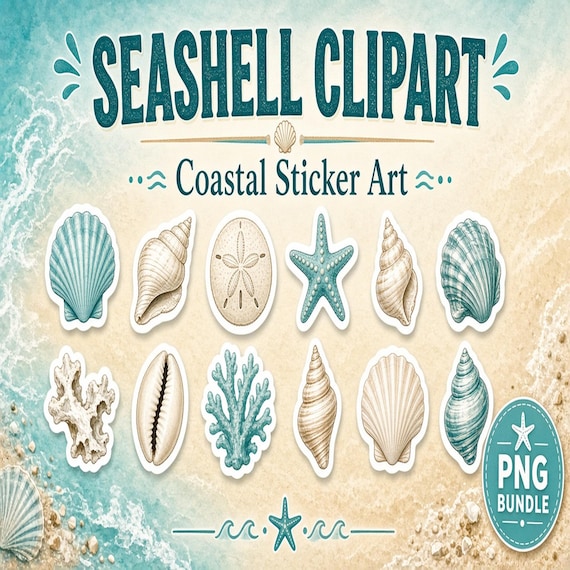
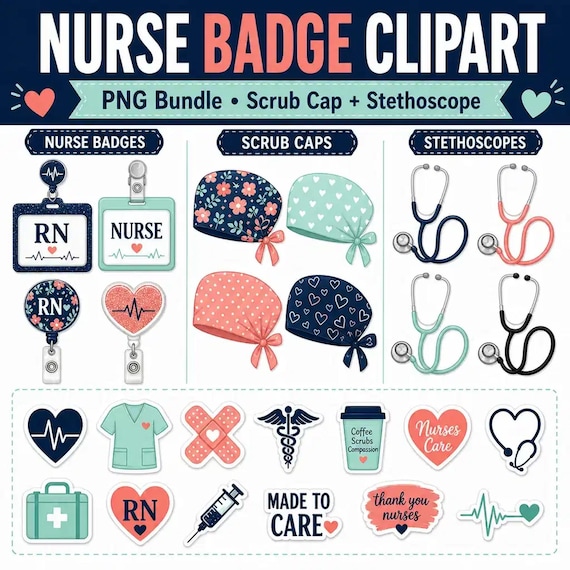
Other current packs use a more individual-file structure. The Coastal Seashell and Nurse Badge products each list 27 transparent PNG clipart files, three JPG preview sheets, and a README or license note. Their JPG sheets help you review the collection, while the listed transparent PNG files are the assets intended for separate placement.
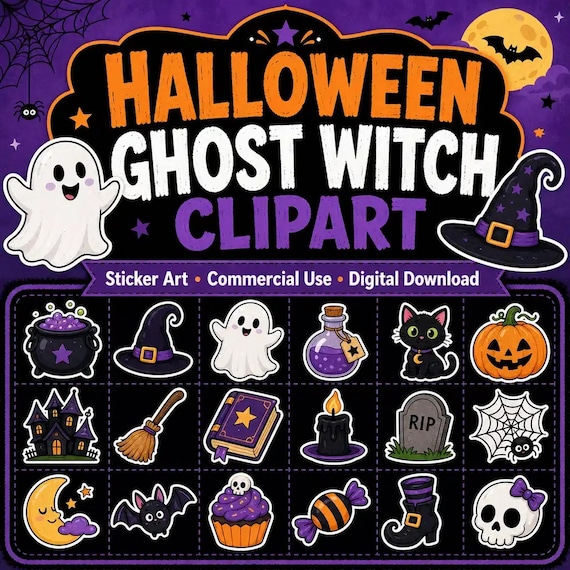
The Cute Ghost Witch pack uses a sheet-led structure. Its current description lists eight JPG artwork sheets, eight matching PNG artwork sheets, one printable PDF containing the sheets, and a README or license note. It also says that SVG or vector files and transparent individual cutouts are not included. None of these structures is automatically better; the right one depends on the finished job.
- Mixed: Mushroom Forest, Coffee Shop, Sourdough Bakery, and Celestial Moon list sheets plus individual crops where clean separation was possible.
- Individual-led: Coastal Seashell and Nurse Badge list 27 transparent PNG clipart files plus JPG preview sheets.
- Sheet-led: Cute Ghost Witch lists finished artwork sheets and explicitly does not claim transparent individual cutouts.
- Always let the current product page and included README control the final comparison.
Choose individual transparent files when one motif must move on its own
Separate transparent PNG elements are the stronger fit when your layout begins with one object rather than a complete sheet. You may want one shell beside invitation text, one mushroom on a planner label, one stethoscope on a badge card, or one mug repeated across several small-shop graphics. A separate file lets you position, duplicate, rotate, and resize that element without first removing neighboring artwork from the same page.
Write down how many independent motifs the first project actually needs. A sticker collection may need several separate files, while a single thank-you card may need only one. Do not use a large file count as a substitute for visual fit. Check the previews and count the designs you would genuinely use at the required size, then confirm that the description calls them individual transparent files rather than preview images or matching sheets.
Separate files do not remove the need for a proof. The background can be transparent while the edge still needs inspection against the real project color. The artwork can also be too detailed for a very small label or cut shape. Individual placement gives you more control, but the final size, material, machine, printer, and export settings still determine whether the result works.
- Best fit: labels, cards, planner accents, composed printables, separate sticker designs, and small graphics built from selected motifs.
- Preview question: Can you identify enough useful individual designs for the first finished project?
- File-list question: Does the listing state a number of separate transparent files, or only show several objects on a sheet?
- Proof question: Does the chosen element stay clear at the real output size?
Choose artwork sheets when the complete arrangement is the useful asset
A finished artwork sheet can be the right purchase when you want the designs kept together. It may work as a printable reference page, a coordinated display, a mood-board component, a complete sticker-art sheet for a suitable workflow, or a quick way to compare a themed collection. You receive the composition as arranged instead of rebuilding the spacing between every item.
Before choosing a sheet-led pack, make sure the whole sheet is genuinely useful. Look at its orientation, spacing, border area, background, and the number of designs that remain readable at the size you plan to use. If the only goal is to lift one ghost or symbol from the middle of the page, a product that explicitly says it does not include individual cutouts is probably the wrong starting point. The PNG version of a sheet is still a sheet when the objects are grouped into one image.
A compiled PDF can make sheet review or printing convenient when the listing includes it, but it does not turn the artwork into separate editable elements. Likewise, a PNG sheet should not be treated as an SVG or vector file. Choose the complete arrangement because you want the arrangement, not because you hope another format is hidden inside it.
- Good fit: full-page review, printing a coordinated sheet, reference boards, and projects that preserve the supplied arrangement.
- Poor fit: independently moving every object when no separate cutouts are listed.
- Do not infer: PNG does not automatically mean one transparent file per visible design.
- Do not infer: a PDF or PNG sheet is not an editable vector package.
Treat a mixed bundle as mixed, not as an unlimited cutout library
Mixed clipart packages can be especially useful because the sheets provide a quick collection overview while the individual crops support selected layouts. The featured Mushroom Forest pack follows this pattern, as do the current Coffee Shop, Sourdough Bakery, and Celestial Moon packs. The important phrase in these file lists is where clean separation was possible. It sets a practical boundary around the individual crops.
Do not count every visible mushroom, mug, loaf, moon, star, or decorative detail and assume there will be a matching separate file. Instead, decide whether the full sheets themselves have value and whether the available individual crops are a helpful addition. If the project depends on one specific object being isolated, confirm that point from the current preview, description, or seller clarification before purchase.
After download, compare the JPG sheets, transparent-background PNG sheets, and individual-crop folder before starting a design. Keep a short list of which motifs have clean separate files and which remain part of a sheet. That inventory prevents you from building a client promise, product idea, or production plan around a file that the package never claimed to include.
- Buy the mixed package only when the listed sheets are useful even if some visible motifs remain grouped.
- Treat individual crops as specifically supplied assets, not a guarantee covering every object.
- Use the downloaded files rather than screenshots or crops taken from listing previews.
- Ask before checkout when one exact isolated element is essential to the project.
Read previews in the same order you will use the files
Begin with the cover image to confirm the overall subject and style, then move to the inside previews. Look for a file-list image, examples of the actual sheets, and close views that reveal edges and detail. A styled mockup can show a possible use, but it should not be mistaken for a physical product or for an extra file that is not named in the description.
Next, match each preview role to the file list. A JPG preview sheet may exist only to show the collection and may not be the file you place into a final design. A transparent PNG sheet may preserve an open background around the group while still keeping all objects together. An individual transparent PNG should show or describe one separately usable element. Write those roles beside the product name while comparing options.
Finally, check whether the previews answer the first project question. If you need three separate coastal elements, can you see a useful range and does the listing state that separate transparent files are included? If you need a complete Halloween sheet, does the arrangement remain readable as a whole? Skip the purchase when the only evidence for a required feature is an assumption based on the cover image.
- Cover preview: confirms subject and visual direction.
- Inside previews: show actual artwork variety, arrangement, and detail.
- File-list preview or description: confirms sheets, separate files, PDF, README, and excluded formats.
- Mockup: demonstrates a possible presentation but does not add an unlisted deliverable.
Run a software and production compatibility check before purchase
The right package has to work in the app and production method you already plan to use. Confirm that your software can import PNG and JPG files at the dimensions you need, preserve transparency when required, resize proportionally, and export the final format accepted by your printer, cutting workflow, marketplace, or production partner. Do not assume that a familiar-looking file will behave the same in every app.
If the workflow depends on a cutting machine, print provider, label template, or transfer process, collect its current file, size, margin, color, and material guidance first. A transparent element can be easier to compose, but it is not automatically a ready-made cut path, press file, or product template. A finished sheet can be easy to print, but it may not match the spacing or registration requirements of a particular machine.
Use one representative file for the compatibility test after download. Import it into the real app, place it on a canvas with the intended dimensions, and make a small proof. If the first file cannot be opened, placed, or exported correctly, solve that problem before arranging an entire collection.
- Confirm that the planned app accepts the specifically listed PNG, JPG, and PDF files.
- Check current size, margin, bleed, color, and export requirements for the final destination.
- Do not assume transparency creates a cut path or that a sheet matches a machine template.
- Test one representative asset from import through final export.
Inspect transparency and edges against real project colors
After download, place a selected transparent PNG over a temporary light background, a dark background, and the actual color planned for the project. This makes an unexpected box, pale fringe, dark halo, rough crop, or stray pixel easier to see. A checkerboard in an editing app can indicate transparency, but the finished background is the more useful test.
Review the element at normal finished size as well as close up. A tiny stray pixel may be invisible in a small label, while a pale edge can become obvious on a dark card or pressed item. Do not erase or redraw the master file while testing. Keep the original package intact, make a working copy, and record any adjustment in the project file.
For a PNG sheet with a transparent background, perform the same check around the outer group and between objects. Transparency around a collection does not make each object separately movable. If the design needs independent spacing, return to a supplied individual file or choose another package rather than cutting hurriedly around a sheet preview.
- Check light, dark, and final project backgrounds.
- Look for boxes, halos, fringes, rough edges, and stray pixels.
- Review the artwork at actual finished size, not only while heavily zoomed.
- Keep any test edits in a working copy rather than changing the delivered master.
Test scale with the real dimensions instead of relying on the thumbnail
PNG and JPG artwork is made from pixels, so enlargement has practical limits. The safest comparison uses the actual pixel dimensions of the downloaded file, the intended physical or on-screen size, and the current requirements of the output method. Do not promise yourself unlimited enlargement simply because the preview looks sharp on a product page.
Create one canvas at the final dimensions and place the artwork without stretching it wider or taller. Review curves, thin details, text-like marks, small gaps, and the edge of the transparent area. If the image becomes soft, jagged, or visually crowded, reduce it, choose a larger supplied file when available, or select a simpler design. Avoid inventing a universal print size without checking the source file and the production specifications.
For sheets, check whether every design remains readable when the entire arrangement fits the page. For individual files, check the smallest and largest sizes likely to be used. A successful proof is specific: one asset, one measured size, one material or screen destination, and one set of settings you can repeat.
- Preserve the original width-to-height proportions.
- Judge the exported or printed proof, not only the editing window.
- Use the current destination requirements instead of a guessed universal size.
- Record the asset, dimensions, material, and settings that passed.
Match the package to stickers, sublimation, printables, or display sheets
For separate sticker designs, individual transparent files usually provide the cleanest starting point because each motif can be placed on its own canvas and given the spacing required by the chosen cutting or printing method. A sheet-led product may still be useful as a reference or complete printed page, but it should not be treated as a collection of ready-made individual cut files when the listing says no individual cutouts are included.
For sublimation or another transfer workflow, a transparent individual element can be convenient when you are composing artwork around a product template. Convenience is not the same as universal compatibility. Follow the current instructions for the printer, ink, transfer material, press, substrate, color setup, and file preparation you actually use, then make one representative test before committing a batch.
For cards, invitations, labels, planner pages, and small-shop graphics, either structure can work. Choose separate files when you need to build your own composition. Choose a sheet when the supplied arrangement is the finished visual you want. Choose a mixed bundle when both the complete collection and selected crops serve a real role. The project should decide the package, not the other way around.
- Separate sticker motifs: prefer specifically listed individual transparent files.
- Sublimation composition: verify the file in the exact production setup and test one item.
- Cards and printables: use individual elements for a custom arrangement or a sheet for a preserved arrangement.
- Reference or display page: a finished JPG, PNG, or PDF sheet may be the simplest choice.
Keep the source package, README, and usage terms together
Save the untouched download in a master folder with its README or license note. Create a separate working folder for selected elements, layout files, test exports, and approved finals. Do not overwrite the original PNGs while cropping, resizing, or testing backgrounds. A clean source makes it possible to restart when a working file is compressed, distorted, or exported with the wrong settings.
Read the current terms for the exact product rather than assuming every clipart pack uses identical permissions. The featured Mushroom Forest listing welcomes personal and small-commercial use for finished projects unless the included README says otherwise and says not to resell, share, or redistribute the original files as-is. The current individual-file and sheet-led examples also describe limits on redistributing raw assets. Use the delivered README as the final reference for the pack you purchase.
Keep any creative disclosure with the same source folder as well. The selected current products describe seller-directed or seller-created AI-assisted artwork that was curated, formatted, packaged, and checked by SteadyStackStudio. If a client, platform, contest, publication, or production partner has requirements about creation methods or asset licensing, confirm those requirements before using the files.
- Master folder: delivered files, README, and purchase record.
- Working folder: copied assets, editable layouts, proofs, and exports.
- Rights check: confirm the intended personal, business, client, or finished-product use from the exact current terms.
- Raw-file boundary: do not resell, redistribute, share, or repackage the source assets outside the stated permission.
Run this final file-package check before opening Etsy
First, name the first finished item and decide whether it needs independently movable motifs, a complete arranged sheet, or both. Then read the included-file list literally. For the featured Mushroom Forest pack, expect three JPG sheets, three transparent-background PNG sheet exports, individual transparent crops where clean separation was possible, and the current README or license note. Do not turn that wording into a promise of one separate file for every visible object.
Next, compare the nearby structures. Coastal Seashell and Nurse Badge currently list 27 individual transparent PNG files plus JPG preview sheets. Cute Ghost Witch lists finished JPG and PNG artwork sheets plus a compiled PDF, while explicitly excluding transparent individual cutouts and SVG or vector files. Coffee Shop, Sourdough Bakery, and Celestial Moon use the same mixed sheet-and-selected-crop idea as the featured pack. Choose the structure that removes the most unnecessary editing from the real project.
Finally, confirm app compatibility, final dimensions, transparency needs, proofing method, and current usage terms. Open the SteadyStackStudio product pages for larger previews and exact file details. Use Etsy only when the package structure, visible artwork, license boundary, and production test all make sense. Skip the purchase when an essential individual file, vector format, size, permission, or output requirement is not stated.
- The first finished item is clearly defined.
- The package states whether artwork is individual, sheet-based, or mixed.
- The listed PNG, JPG, PDF, and README files fit the planned app and output method.
- One real-size transparency and production proof is possible before a full batch.
- The current product page and Etsy listing agree before checkout.
Printables used in this guide
Instant downloads from the SteadyStackStudio Etsy shop.
Mushroom Clipart PNG Bundle
Mushroom Forest Clipart PNG Bundle is a ready-to-use digital clipart download for printable sellers, sticker makers, sublimation…
Seashell PNG Clipart Bundle
A finished transparent PNG clipart bundle for beach wedding creators, coastal printable sellers, sticker shops, planners, and…
Nurse Clipart PNG Bundle
A finished transparent PNG clipart bundle for nurse gift shops, healthcare crafters, sticker makers, badge sellers, and…
Halloween Clipart PNG Bundle
A polished digital artwork bundle for Halloween printable sellers, teachers, sticker makers, party planners, scrapbookers, and…