Clipart PNG · Sep 30, 2026 · 13 min read
Cleaning Business Clipart Setup: Test One Transparent Icon Before You Print Stickers or Labels
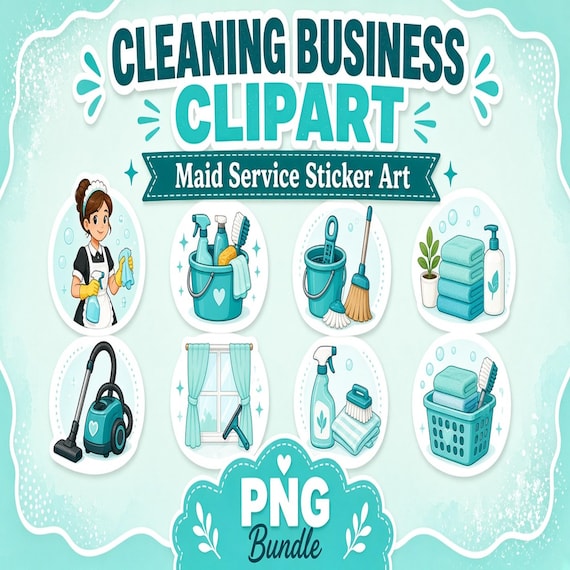
A practical file check for cleaning businesses, maid services, and printable sellers who need icons rather than intake forms. Confirm the 27 transparent PNG files, three JPG preview sheets, and README, then test one icon at the size you will actually print before you build a sticker, label, card, or quote header.
Start with the finished piece, not the prettiest mop icon
A cleaning clipart download is useful only when you already know the piece it has to finish. A quote header, a thank-you card, a supply label, a small sticker for a welcome kit, and a social post are different jobs. They do not all need the same icon, the same size, or the same file.
The current Cleaning Business Clipart PNG Bundle is finished artwork for those visual jobs. It is not the cleaning forms bundle, and it is not a booking system, a logo-design service, or a printed sticker order. If the missing piece is an inquiry form, a walkthrough, an estimate, a service agreement, a checklist, or an invoice, use the paperwork guide instead. Come back when the words are settled and you need a small icon beside them.
Name one finished piece before you unzip anything. Write down the destination, the approximate size, and whether the icon must sit on a colored background. That note keeps you from opening all 27 files and decorating a page that did not need decoration.
- I can name one finished piece: sticker, label, card, quote header, or social post.
- I need an icon beside words, not a replacement for the service agreement or invoice.
- I know the approximate print or screen size before I choose a file.
- I am not expecting this download to create a logo, a website, or a client portal.
Confirm the current file list before you treat it like a logo kit
The listing describes a finished transparent PNG clipart bundle for cleaning businesses, maid services, printable sellers, sticker shops, and small-service marketers. The stated contents are 27 transparent PNG clipart files, 3 JPG preview sheets, and a README/license note. It is an instant digital download. No physical stickers, labels, or printed cards ship with it.
Read that list literally. Twenty-seven PNG files means 27 separate image files, not 27 guaranteed cleaning tools and not a promise that every file will suit a logo. The three JPG preview sheets are review pages for the collection. The README/license note is part of the download and should stay with the files. The listing also says only the finished digital files described above are included, so do not expect SVG, AI, EPS, or a vector cut path unless the current file list says so. Check the product page again before you buy, in case the package notes change.
The title and tags point to sparkle, mop, and spray-bottle artwork, along with cleaning and maid-service themes. That is a theme description, not an inventory you should memorize. The preview sheets are how you see what the 27 files actually show. If you need a bucket, a vacuum, gloves, or a specific mascot and you cannot see it in the previews, do not assume it is hidden in the ZIP.
- 27 transparent PNG clipart files are the working images.
- 3 JPG preview sheets are for review, not for final placement.
- A README/license note is included and should stay with the package.
- No physical item ships.
- SVG, AI, and EPS files are not described in the current file list.
Use the preview sheets to choose, then close them
Open the three JPG preview sheets first, on a screen large enough to see the icons without squinting. Mark a shortlist of two or three motifs that match the piece you named. Write down the filename or the position on the sheet so you can find the matching PNG later. Do not build the finished piece from a screenshot of the listing or from a cropped preview.
A JPG preview sheet is a picture of the collection. It can show you style, subject, and whether the set feels consistent. It is a poor working file for a sticker or a label because a JPG does not keep a transparent background. If you drop a preview sheet onto a colored quote or a kraft label, you will likely get a rectangle around the icons. That rectangle is a file-choice problem, not a printer problem.
Close the preview sheets once the shortlist is written down. The next step uses one PNG, not the sheet you just browsed. Keep the JPG files in the original folder so you can return to them when you start a second piece later.
- Browse the JPG sheets only to choose.
- Record the filename or sheet position for each shortlisted icon.
- Do not place a JPG preview sheet into the finished layout.
- Do not rebuild the artwork from a listing screenshot.
Open one transparent PNG and look at the background
Copy one shortlisted PNG into a new working document. Leave the original ZIP and the original PNG untouched. Place the icon over a temporary rectangle in a color you actually use, such as a deep green, a warm gray, or the paper color of your label. A checkerboard in a design app can suggest transparency, but the colored rectangle is the clearer test.
Look at the edge. A usable transparent PNG should let the rectangle show around the mop, bottle, or sparkle shape. A white box, a faint halo, or a clipped edge means this file is a poor fit for that background, even if the preview looked clean. Try a second shortlisted PNG before you decide the whole bundle fails. One weak edge does not describe all 27 files, and one clean edge does not excuse skipping the rest of the shortlist.
The listing says the finished artwork was created with AI-assisted image generation, then cropped, formatted, packaged, and quality checked. That note is a reason to inspect edges, repeated shapes, and odd details yourself. It is not a substitute for the background test, and it is not a promise that every file will suit every print method.
- Work from a copy. Keep the downloaded PNG unchanged.
- Place the icon over a real project color, not only a checkerboard.
- Reject a white box, a heavy halo, or a clipped edge for that use.
- Review the shortlist, not a single favorite, before you commit.
Choose one finished piece before you scatter every icon
A coordinated cleaning set usually needs one lead icon and, at most, one supporting mark. A quote can carry a small spray-bottle icon beside the business name. A supply label might need only a mop. A thank-you card can use one sparkle motif in a corner. Five icons on a half-page card make the service look busy and leave less room for the address, the date, and the price.
Decide the role of the icon before you resize it. A lead icon can sit near the business name. A supporting icon should be smaller and farther from the words a client must read. If you cannot explain the role in one sentence, leave the icon out. Empty space is more useful than a decorative cluster that competes with the phone number.
If you sell printables or stickers rather than cleaning services, the same limit applies. Build one collection — a sheet of matching stickers, a set of labels, or a card — and stop when that collection is consistent. The other PNG files can wait for the next piece. A bundle is a library, not a requirement to use every file on day one.
- One lead icon is enough for most quotes, cards, and labels.
- Give every icon a role before you resize it.
- Leave room for the business name, phone number, and the words the client must read.
- Save unused PNGs for a later piece instead of filling every gap.
Put the icon beside the words, not on top of them
Type the real words first. Use your business name, a short service line, and the contact detail that has to stay readable. Then place the PNG. If the icon covers a letter, a price, or a phone number, it is too large or too close. Shrink it from a corner with proportions locked. Do not stretch a mop wider to fill a banner. A stretched icon looks like a file error even when the PNG was fine.
Keep the icon inside a quiet area of the layout. On a quote, that is often the header, away from the scope and the total. On a label, it is often a corner, with a margin so a cut does not slice the spray bottle. On a card, test the fold or the trim line before you trust the screen. A digital download does not know your paper size, your margin, or your cutter.
The listing says the artwork can be used for stickers, printables, planner pages, sublimation projects, small-shop graphics, social posts, cards, tags, labels, and digital designs. Those are allowed uses, not a checklist you must finish. Pick the uses you will actually make this month. A sublimation blank, a planner page, and a social square still need their own size test. Do not assume a layout that worked on a quote will transfer unchanged.
- Set the words first, then place the icon.
- Resize from a corner with proportions locked.
- Keep a margin so trim, fold, or a label edge does not cut the artwork.
- Treat the use list as permission, not as a pile of required projects.
Print one sticker or label at the real size
These PNG files are raster images. They are made of pixels. They do not behave like vector artwork that can grow from a business-card icon to a van wrap without a change in sharpness. The listing does not state a pixel size or a print resolution, so do not assume a small screen preview will stay crisp at every size. Make the proof at the size you will actually hand to a client or send to a sticker printer.
Print or export one icon at that size on the paper, label stock, or sticker material you plan to use. Look at the edge in good light. If the shape turns fuzzy, blocky, or pale, reduce the size or choose a simpler motif from the shortlist. Do not enlarge a screenshot to compensate. Return to the original PNG and export again from that file.
If a print shop or a sticker website asks for SVG, AI, EPS, or a vector cut line, this download does not describe those files. You can still use a PNG for many printed pieces, but confirm the shop's current file rules before you promise a die-cut shape. A kiss-cut or die-cut outline is a production step you or the shop must create. This bundle does not draw that outline for you.
Color can shift between a phone screen, a laptop, and a home printer. Compare the proof with the preview rather than expecting an exact match. If the proof is acceptable at the real size, save that export and put the size in the filename, such as spray-bottle-label-2in.png. The next batch should start from that proof, not from a fresh guess.
- Proof at the final size, not at a convenient screen zoom.
- Do not stretch or hugely enlarge a raster PNG and expect a logo-sharp result.
- Ask a print shop what file type it accepts before you promise a cut path.
- Save the proof name with the size so the next batch starts from the same file.
Keep the forms bundle and this icon pack in different jobs
The cleaning forms bundle is a separate download. Its current file list includes a client intake and walkthrough form, an estimate or quote template, a service agreement, a recurring cleaning checklist, a deep-clean checklist, and an invoice with a quality-control signoff. It also includes editable Word files and printable PDFs in a US Letter layout. That bundle is for the words, the scope, and the record of the job.
This clipart pack does not replace any of those pages. A mop icon on an invoice does not define what was cleaned, what was excluded, or what the client agreed to pay. If you add an icon to a form, add it only after the form text is correct, and keep it small enough that it cannot be mistaken for a checked task. A decorative sparkle next to a total is easy to overdo. If the number is harder to read, remove the icon.
Use the paperwork guide when you need to connect an inquiry to a walkthrough, an estimate, a checklist, and an invoice. Use this guide when that chain already exists and the missing piece is a transparent icon for a sticker, a label, a card, or a header. Buying both can make sense. Using one as a substitute for the other does not.
- Forms carry scope, price, and the job record.
- Icons carry a visual mark beside that record.
- Do not let artwork cover a checklist line or a total.
- Open the forms guide when the missing piece is paperwork, not a PNG.
Read the license before you send a file to a designer or a printer
The current license is single-buyer, single-business commercial use. You may use the artwork in your finished products and marketing. You may not resell, redistribute, share, give away, or claim the raw files as your own competing clipart bundle. Read the included README before you rely on a shorter summary, because the note in the download is the copy that travels with the files.
That split matters when you hand files to someone else. A designer, a virtual assistant, or a print shop can receive the finished export they need to produce your card or sticker. They should not receive the full ZIP to keep, repost, or resell. If a second business needs the same raw files, read the README again and treat that business as a separate purchase unless the note says otherwise.
Finished products are the allowed end of the license: a printed label, a sticker on a welcome kit, a card you hand to a client, or a social post that uses the icon inside your own layout. The raw PNG, the preview sheet, and the README are not products to list for sale as a clipart pack. You are also responsible for the final review, for platform rules, and for local requirements. This download does not review your business name for conflicts, and it does not approve a chemical claim, a price, or a guarantee you type next to the icon.
- Finished products and your own marketing are the allowed commercial use.
- Do not resell, share, or give away the raw PNG files or the ZIP.
- Send a printer the finished export, not the whole source package.
- Check your own business name, claims, and local rules before you print a batch.
Switch packs when the theme or the file shape is wrong
Stay with this bundle when the preview sheets show sparkle, mop, and spray-bottle artwork you would actually put next to a cleaning business name, and when you need separate transparent PNG files rather than one locked sheet. Leave it when the previews do not match the job. A lower price is not a reason to force a beach icon or a bakery icon onto a cleaning quote.
The Coastal Seashell Clipart PNG Bundle uses the same kind of file list: 27 transparent PNG files, three JPG preview sheets, and a README/license note. Its subject is beach shell and starfish artwork. Choose it for a coastal project, not as a substitute mop. Other clipart downloads, including the western cowgirl and coffee shop packs, are built as full sheets plus transparent sheet exports, with individual crops only where a clean separation was possible. Those are a different file shape. If you need the arranged sheet more than one movable icon, compare the current file list before you assume every clipart listing works like this 27-file bundle.
If you need a finished social promo screen or a moving background, this bundle is the wrong starting point. It is a set of still PNG icons and JPG preview sheets. Do not crop a preview sheet and call it a video background. Open a download whose file list actually describes the screen size and the still or moving format you need.
- Match the preview theme to the business before you match the price.
- The same file shape does not mean the same subject.
- Sheet-led packs are a different workflow from 27 separate PNGs.
- Do not turn a still preview sheet into a promised video background.
Run this fit check before you open Etsy
Read the current listing once more and compare it with the notes you just made. The useful download is the one whose previews, file list, and license match the piece you named at the start. A longer file list is not a reason to place every icon, and a familiar mop drawing is not a reason to skip the background test.
If any line below fails, do not force the bundle to do a job it does not describe. Choose the forms bundle, a different clipart theme, or a sheet-led pack, and leave this ZIP closed until the file list matches the piece you actually need to make.
- I named one finished piece and its real size.
- I confirmed 27 transparent PNGs, 3 JPG preview sheets, and a README.
- I will choose from the preview sheets and place a PNG, not a JPG sheet.
- I will test one icon over a real background color and at the print size.
- I will keep the forms bundle for scope, price, and records.
- I will not resell the raw files or send the full ZIP out as a clipart pack.
- The previews show artwork I would put next to this business name.
Printables used in this guide
Instant downloads from the SteadyStackStudio Etsy shop.
Cleaning Business Clipart PNG Bundle
A finished transparent PNG clipart bundle for cleaning businesses, maid services, printable sellers, sticker shops, and…
Cleaning Business Forms Bundle
Cleaning business forms bundle for residential cleaners and small cleaning companies: 26-page fillable PDF with client intake…
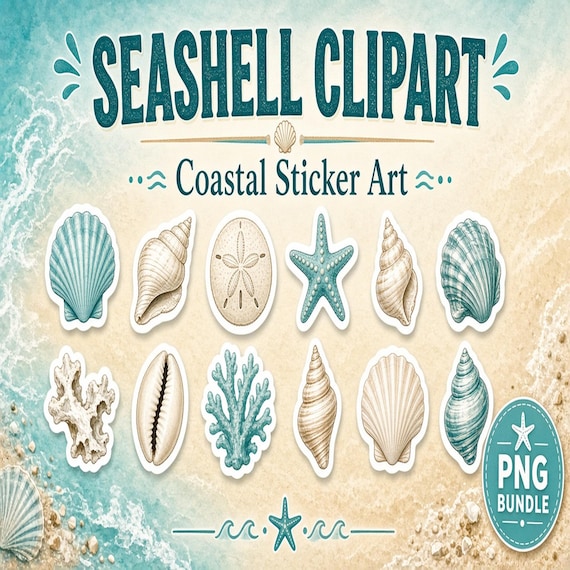
Seashell PNG Clipart Bundle
A finished transparent PNG clipart bundle for beach wedding creators, coastal printable sellers, sticker shops, planners, and…
Cowgirl Clipart PNG Bundle
Western Cowgirl Clipart PNG Bundle is a ready-to-use digital clipart download for printable sellers, sticker makers, sublimation…