Clipart PNG · Oct 8, 2026 · 11 min read
Garden Seed Packet Clipart Setup: Match One Icon to a Plant Label or Seed-Swap Tag
A practical file check for garden planners, seed-swap hosts, and homestead shops. Confirm the 27 transparent PNG icons, three JPG preview sheets, and README, then test one icon beside a readable variety name before you print a stack of labels or tags.
Name the finished piece before you open a folder of icons
A seed-packet icon can land on several finished pieces, and those pieces do not share one size. Write the job in one sentence before you download anything: a plant stake for a garden bed, a tag for a seed-swap table, a sticker for a small-shop envelope, or a small picture beside a planner row.
Then write what a person must be able to read on that piece. On a swap table or a storage envelope, the variety name has to win. A pretty leaf that crowds the name makes the label fail even when the artwork is sharp. On a shop sticker, the icon can be larger, but the packet still needs a name someone can read without picking it up. On a planner page, the icon marks a row you already keep. It does not replace the row.
If the real job is frost dates, germination, or the week you plan to transplant, stop here. That job belongs in a seed-starting spreadsheet, not in a clipart folder. This download does not include sowing calendars, tray logs, or packet instructions.
Confirm this download is artwork, not a planting record
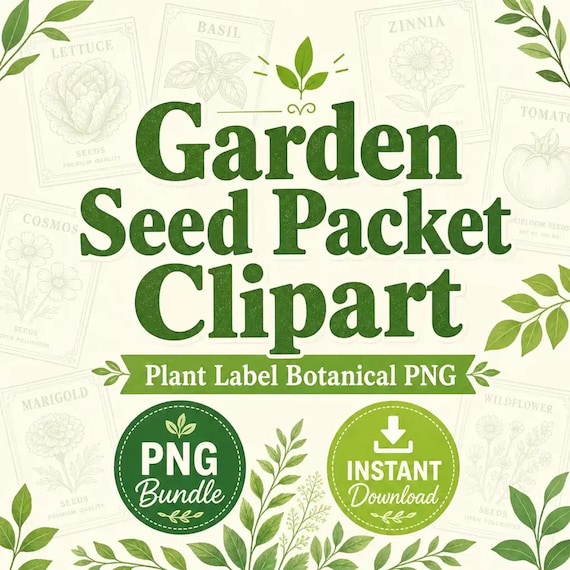
Open the current product page and read the file list before you treat the pictures as a garden system. The Garden Seed Packet Clipart PNG Bundle is a finished transparent PNG clipart bundle for garden planners, seed-swap hosts, homestead shops, printable sellers, and botanical projects.
The current package lists 27 transparent PNG clipart files, 3 JPG preview sheets, and a README with a license note. It is an instant digital download. No printed labels, stakes, envelopes, or seed packets ship with it.
The listing says the files can be used for stickers, printables, planner pages, sublimation projects, small-shop graphics, social posts, cards, tags, labels, and digital designs. That list describes possible finished uses. It does not mean every icon is already laid out as a blank label, and it does not include your variety names, lot dates, or growing notes. You add those words yourself.
Read the file list as three different jobs
The 27 PNG files are the working pieces. Use one of them when a single icon needs to move onto a label, tag, card, or sticker. You do not have to use all 27 in one project. A seed-swap table usually looks clearer with a small set of icons that match the packets on the table, not with every picture from the folder.
The 3 JPG preview sheets are for choosing. They show the artwork in sheet form so you can scan the set before you open individual files. A JPG preview sheet is not the file to place on a single clear sticker. If you drop a whole preview sheet onto a small label, you will print a grid of icons instead of one picture beside one name.
The README is the third job. Read it before you send files to a printer, a designer, or another person helping with the swap. The product page states single-buyer, single-business commercial use for finished products and marketing. It also says you may not resell, redistribute, share, give away, or claim the raw files as your own competing clipart bundle. If the README in your download is more specific, follow the README.
Use the preview sheets to name what you can see
The listing title and tags point to plant labels, seed packets, vegetables, herbs, and flowers. That is a theme, not a promise that one particular variety is in the folder. Do not assign a variety name to a file until you have seen that icon on a preview sheet.
Open the three JPG preview sheets first. For each icon you might use, write a plain description in your notes: flower, leaf, vegetable, packet shape, or garden tool. If you cannot tell what the icon is at the size of your label, it is the wrong icon for that label even if it looks charming at full screen.
Close the preview sheets after you have a short list. Then open only the PNG files that match that list. Renaming a working copy is fine. Do not rename or overwrite the original download. Keep the original folder intact so you can return to the files the listing described.
Open one transparent PNG and check the edge
Pick the first icon on your short list and open that PNG on a background close to the label you will print. Check it on white, then check it again on the paper or sticker color if that color is not white. A transparent file should let the label show through around the artwork. A white box, a gray halo, or a hard rectangle around the icon means that file is not ready for a clear sticker.
Look at the edge at the size you will print, not only at full size on a large monitor. Fine stems and tiny details can disappear when the icon shrinks to a plant stake. If the edge looks muddy only after you scale it down, choose a simpler icon from the same pack or give this one more space.
The listing states that the finished artwork was created with AI-assisted image generation, then cropped, formatted, packaged, and quality checked. Your check is still required. A prepared file can still be the wrong size, the wrong theme, or the wrong contrast for the label in your hand.
Put the variety name where a person can read it
The icon is a picture. The variety name is the information. On a plant label, a seed-swap tag, or a storage envelope, keep the name in its own clear area. Do not set the name across leaves, stems, or a busy center. If the only way the design fits is to shrink the name until you have to pick the tag up, the icon is too large for that piece.
Measure the real object before you scale the PNG. A wooden stake, a paper tag, a coin envelope, and a sticker sheet are different widths. Write the width and height you can actually print or write on. Leave a margin inside that area so a small paper shift does not cut off the name. Home label sheets can shift slightly as they pass through a printer, so important words belong inside the label, not on the cut edge.
If you are printing on sticker sheets, use sheets made for your printer and match the template to that exact sheet. A template for a different label size is a common reason a name lands on the gap between labels. Print one label before you print a page. A test that looks sharp on screen can still smear, sit crooked, or leave a white sliver once it is on paper. Fix the one label, then print the rest.
Match the icon to the seed row you already keep
A clipart icon does not know which packet it belongs to. Before you print a stack, make a two-column check: the name on the seed row, and the icon you chose for that name. The seed row can live in a notebook, a seed-starting spreadsheet, or the notes you use at a swap. The picture and the name need to come from the same current list.
Read the packet or your own saved note for the variety name. Do not invent a sowing date, a harvest claim, or a growing instruction from the artwork. If those details belong on the tag, copy them from the packet, the supplier note, or your own record, and mark where they came from. An icon of a flower is not a planting calendar.
If two packets would need the same icon because the preview sheets do not show a closer match, either share that icon and let the written name do the identifying, or skip the icon on the second tag. A repeated picture with two clear names is safer than a guessed picture that implies the wrong plant.
Print one tag at the distance you will use it
Hold the test print where it will actually be read. A seed-swap tag is often read across a table. A plant stake is read while you are standing over a bed. A shop envelope may be read in the hand. If you cannot read the variety name from that distance, enlarge the words or reduce the icon. Do not solve it by adding more icons.
Check contrast in the light you will use. A dark stem on a dark kraft tag can vanish even when the PNG looked crisp on a white screen. If the tag color fights the artwork, switch the paper or choose a different icon. Do not treat a monitor preview as the final contrast check. Printed color can also shift from what you saw on screen, so the paper test is the one that counts.
Write the test result next to the file name: paper or sticker type, printed width, and whether the name stayed readable. That note keeps the next print from becoming another guess. If you change paper, printer, or label size, run the one-piece test again. If the finished piece is a sublimation blank rather than paper, this PNG check only confirms the icon. Heat, blank type, and color shift belong to the blank supplier's instructions, not to a paper proof.
Keep the artwork folder and the planting notes apart
A useful garden setup has two files that point at each other and do not try to do the same job. The clipart folder supplies pictures. The seed-starting spreadsheet, or your own written list, supplies variety names, sowing windows, germination notes, and transplant plans. When you update a sowing date, update the record. Do not hide the new date inside a renamed PNG.
If you are also tracking cut-flower stems, bouquet recipes, or market sales, keep that planner separate too. A harvest count is not a label layout, and a label layout is not a sales log. Linking them with the same variety name is enough. Copying every note into the artwork file makes both harder to maintain.
For a homestead shop, the same split applies to other themes. Lemon farmstand icons fit a citrus stand. Chicken and egg icons fit a coop or an egg carton. Neither of those packs replaces this seed-packet set, and this set does not replace them. Open the preview sheets for the theme you are actually printing.
Read the license before the file leaves your computer
Personal and small-business use of the finished artwork is allowed under the current listing: one buyer, one business, for finished products and marketing. A printed tag, a sticker on your own seed envelope, a planner page, or a card you sell as a finished piece can fit that use. Sending someone the original PNG folder, posting the raw files for free download, or reselling the images as a clipart pack does not.
If a designer, a print shop, or a family member is helping you, give them the finished label export or a clearly limited working file, and keep the original package in your own records. Do not hand over the whole download as a shared library. If a place where you sell finished goods has its own artwork rules, those rules are yours to check. This guide cannot clear a trademark, a variety name you do not control, or a local labeling requirement.
Keep the README with the original folder. If you later need to show what you downloaded, the note and the untouched files are the record. A renamed working copy on the desktop is not a substitute for that record.
Switch packs when the picture or the file shape is wrong
Stay with this pack when you need individual transparent icons for plant labels, seed-swap tags, or small garden graphics, and the preview sheets show icons you can match to your rows.
Move to the seed-starting spreadsheet when the missing piece is a date, a tray label code, a germination note, or a transplant plan. That setup is a different download and a different job. This clipart guide does not replace it.
Move to the lemon farmstand clipart when the finished piece is a citrus market sticker or a lemonade-stand card. Move to the farmhouse chicken clipart when the icon should be a hen, an egg, or a coop. Move to the western cowgirl clipart or the mushroom forest pack only when that theme is the one you are printing. Those downloads are separate artwork, even when a product page lists them nearby.
If you need journal pages to cut and paste into a paper craft, this PNG bundle is the wrong shape. A junk journal kit is built as printable pages. Do not stretch these icons into a fake ephemera kit and call the job done.
Run this fit check before you download
A short check is cheaper than a sheet of tags that look finished and cannot be read. Stop on the first line that fails, fix that line, or choose the other download.
- The finished piece is a label, tag, sticker, card, or planner icon, not a sowing calendar.
- The current file list is 27 transparent PNG files, 3 JPG preview sheets, and a README with a license note.
- You can describe the icons you will use from the preview sheets, and you are not guessing a variety from a file name.
- One PNG has a clear edge on the paper color you will print.
- The variety name has its own readable space, inside the label, at the distance you will use it.
- The icon matches a current seed row, and any growing note comes from the packet or your record, not from the picture.
- You have printed one test at the real size, on the stock you will actually use.
- The license allows the finished use you have in mind, and the raw files stay with you.
Printables used in this guide
Instant downloads from the SteadyStackStudio Etsy shop.
Seed Packet Clipart PNG Bundle
A finished transparent PNG clipart bundle for garden planners, seed swap hosts, homestead shops, printable sellers, and botanical…
Seed Starting Spreadsheet
Seed starting spreadsheet for home gardeners: Excel-first workbook with seed inventory, planting calendar, germination log (auto…
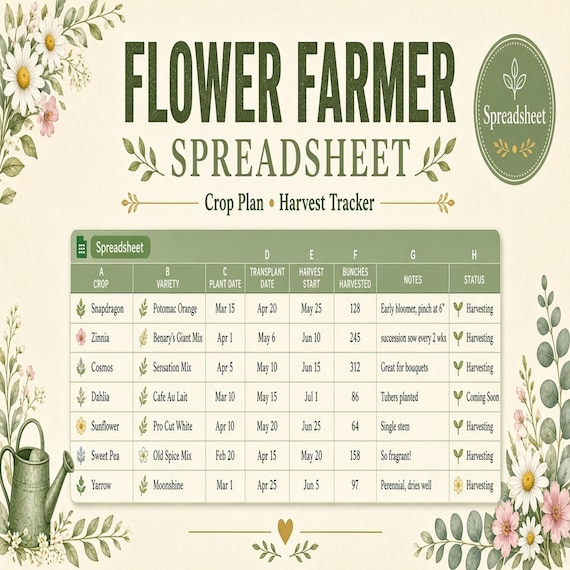
Flower Farm Planner Spreadsheet
The pages are designed to help you prepare, record decisions, and keep the next action visible without building your own system…
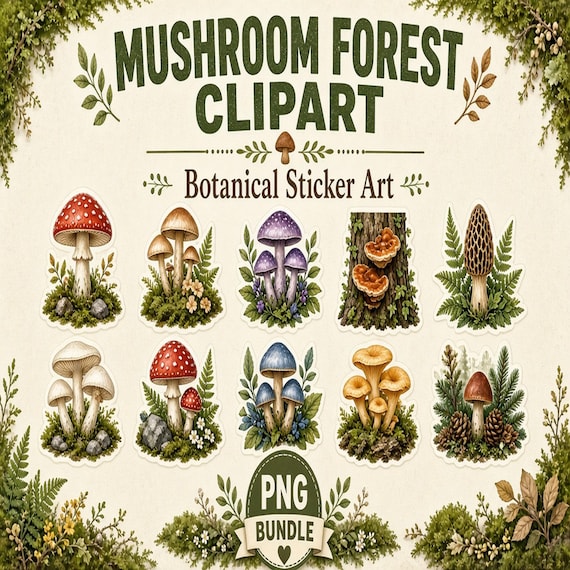
Mushroom Clipart PNG Bundle
Mushroom Forest Clipart PNG Bundle is a ready-to-use digital clipart download for printable sellers, sticker makers, sublimation…