
Event & Wedding Pros · Aug 20, 2026 · 14 min read
Bounce House Rental Turnaround Checklist: Delivery, Pickup, Cleaning, and Inventory Reset
A practical way to connect delivery details, setup photos, return checks, cleaning records, and equipment status without treating an operations template as a safety manual.
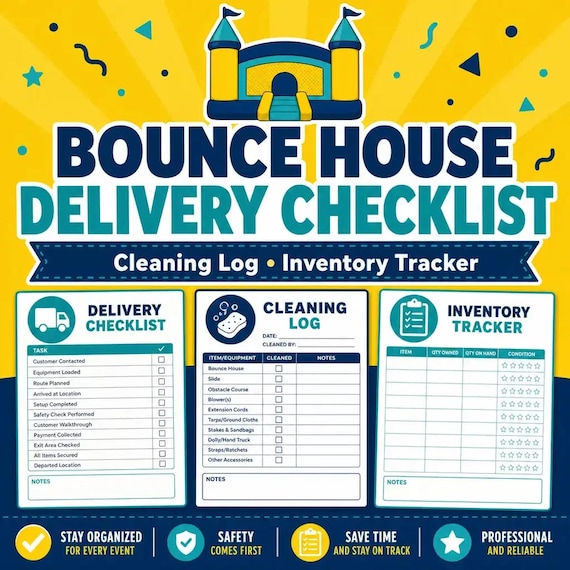
Treat each rental as one traceable handoff
A bounce house rental creates several handoffs: the booking becomes a delivery plan, the delivery becomes a site handoff, the pickup becomes a return check, and the return check becomes cleaning and inventory work. The paperwork is most useful when those stages can be traced back to the same rental instead of living in unrelated messages, photos, and loose checklists.
Start by choosing one rental reference that follows the job from the first working row to the final return status. It can be a simple date-and-number code or another format your business already uses. Put that same reference on the delivery record, any printed page, the folder for setup photos, the return check, and the cleaning entry. The code does not need to reveal a customer name when an internal reference will do.
This structure is for organization, not for deciding whether equipment or a site is safe. A tracker cannot approve anchoring, electrical supply, weather conditions, supervision, cleaning products, inspection intervals, or return-to-service. Those decisions must follow the current manufacturer instructions, your training, insurance requirements, and the rules that apply where you operate.
- Use one rental reference across the workbook, printed pages, photo folder, and return record.
- Keep contact details only where the business actually needs them; use the reference elsewhere.
- Give every stage a clear status so the next person can see whether work is ready, waiting, or stopped.
- Keep safety and compliance decisions in the procedures and records required for your equipment and location.
Confirm the current download package before building the workflow
The featured SteadyStackStudio download is currently described as a digital template kit for bounce house rental companies, party rental operators, inflatable rental side hustles, and event equipment teams. It includes an Excel delivery and equipment tracker, printable delivery, cleaning, and return PDF pages, editable customer and setup cards in PowerPoint format, a quick-start PDF, and a README with the license note. The files arrive as a ZIP after Etsy checkout; no equipment, printed forms, signs, or other physical item is shipped.
Open the quick-start guide first and compare the direct product previews with the work you need to record. Confirm that your device can extract a ZIP and open XLSX, PDF, and PPTX files. If you rely on a particular column, formula, dropdown, page size, mobile feature, or printer layout, verify that detail in the current previews or listing rather than assuming it from the title.
Keep the original ZIP and one untouched extracted copy. Make a separate working copy before changing headings, status words, cards, or workbook structure. That gives you a clean reference if a formula is overwritten or a printed page is changed too far. It also makes the first test easier because you can compare the customized version with the files that were actually delivered.
- Listed formats: XLSX tracker, printable PDFs, editable PPTX cards, quick-start PDF, and README in a ZIP.
- Check the real inside-page previews, not only the styled cover image.
- Confirm software, printer, and device fit before entering a live rental.
- Preserve a clean master and customize a duplicate.
Give the rental and the equipment separate identities
The rental reference identifies the job; an equipment identifier identifies the actual unit or component used for that job. Those are different questions. A Saturday birthday booking may close after pickup, while a particular unit may still need cleaning, inspection, repair review, or another action before it can be marked available. If the same label is used for both, the calendar can look complete while the equipment record is still unresolved.
Use the Excel tracker to connect the rental reference with the equipment names or IDs your business already maintains. Do not invent a new label over an existing manufacturer serial number or required identifier. The goal is simply to make it possible to answer which equipment went to which job and which return record belongs to that equipment. If accessories or supporting items must travel with the unit, identify them according to the manufacturer’s documentation and your established procedure rather than relying on memory.
Test the relationship with a sample job. Can another staff member move from the rental row to the correct delivery page, photo folder, return record, and equipment status without searching a text thread? Can they tell the difference between a closed customer job and equipment that is not ready? If not, simplify the references before adding more rentals.
- Rental reference: follows one customer job from preparation through closeout.
- Equipment identity: follows the unit or component across many rentals.
- Link the two without replacing serial numbers or identifiers required by the manufacturer or authority.
- Do not use a closed booking status as proof that returned equipment is ready for another rental.
Plan the delivery record before the vehicle is loaded
A useful delivery page should answer the practical handoff questions before departure: where the crew is going, when access is available, who the contact is, what equipment the approved plan calls for, and which details are still unresolved. Customize the working files around the information your team is permitted and expected to use. Keep the page concise enough to read during loading instead of turning it into a copy of every customer message.
Separate confirmed information from open questions. A confirmed address is not the same as a confirmed setup location, and a requested time is not automatically an approved arrival window. If site, access, power, surface, weather, anchoring, staffing, or other conditions require review under the manufacturer’s instructions or local procedure, route that review to the qualified person and mark the job as waiting. Do not let a blank cell quietly become approval.
Use the equipment tracker as the working source for what is assigned, then use the printable delivery page as the day-of handoff. Reconcile the page with the actual load before departure. If a required item or approval is missing, stop the workflow and follow the business’s established procedure. The template can show that an issue is open; it cannot decide whether a substitution or setup is acceptable.
- Confirm contact, address, access window, assigned equipment, and unresolved questions.
- Use explicit words such as confirmed, waiting, or stopped instead of unexplained blanks.
- Reconcile the delivery page with the actual load before leaving.
- Send safety, equipment, weather, site, and compliance decisions through the required qualified process.
Use setup photos as a handoff record, not as a safety certificate
The current product description specifically mentions setup photos, and its PPTX files are described as editable customer and setup cards. Decide in advance how those pieces will be named and stored. A small photo set is easier to review when every image folder starts with the same rental reference and the card shown in the folder identifies the job without exposing unnecessary customer information.
Choose photo viewpoints according to the documentation your business, insurer, manufacturer, or local rules require. Keep the photo step factual: record what was present at the handoff and any permitted status or note. Do not add a generic phrase such as “safe setup” simply because a picture was taken. A photograph may support a record, but it cannot prove that an unseen anchor, electrical connection, weather decision, inspection step, or operating condition met every requirement.
Before leaving the site, make sure the customer-facing card and the internal record have different jobs. A customer card can carry the approved contact or handoff information your business uses. Internal notes, equipment IDs, and unresolved issues should stay in the controlled business record. If the setup cannot be completed under the applicable instructions, record the stopped handoff and follow the required escalation or cancellation procedure rather than forcing the checklist to look complete.
- Name the photo folder with the rental reference before the first image is taken.
- Capture only the views and information required by your established procedure.
- Do not treat a photo or checked box as automatic proof of a safe or compliant setup.
- Keep customer-facing cards separate from controlled internal notes and equipment records.
Separate pickup condition from cleaning status
Pickup and cleaning are two different stages. The return page should record the permitted factual condition at pickup or return, while the cleaning record should show what happened after the equipment reached the approved work area. Combining them into one “done” box makes it difficult to see whether a returned unit has been checked, cleaned, dried, reviewed, repaired, or held from use.
At pickup, connect the return record to the rental reference and equipment identity. Record only the condition terms your business has defined and trained people to use. If there is damage, contamination, missing equipment, an incident, or another unresolved concern, mark the equipment as held and follow the appropriate reporting, inspection, insurance, manufacturer, or local procedure. The template is not a damage assessment standard and should not be used to make a technical repair decision.
When the customer job is complete, close the booking separately from the equipment status. The customer row may be finished while the unit remains waiting for cleaning or qualified review. This separation prevents a busy team from assigning equipment just because the event has disappeared from the delivery calendar. It also creates a cleaner history when staff need to understand why a unit was unavailable between two bookings.
- Pickup record: what returned, when it returned, and the factual status allowed by your procedure.
- Cleaning record: the later work and status recorded under the approved cleaning process.
- Booking status and equipment availability should never share one ambiguous completion box.
- Hold unresolved equipment and use the required technical or incident-review path.
Use the cleaning log as a record, not a cleaning recipe
The printable cleaning pages can help show that a cleaning step was assigned and recorded. They do not tell you which chemical, concentration, tool, water temperature, drying method, contact time, protective equipment, or inspection interval is suitable for a particular inflatable. Those details must come from the current manufacturer instructions, product labels, training, insurer guidance, and applicable health or local requirements.
Customize status words only after the business has defined what they mean. Useful operational states may distinguish waiting, in progress, drying, review required, and complete, but the exact sequence should match the procedure you are authorized to follow. Record the rental reference, equipment identity, date, responsible person, and the permitted cleaning-status information your procedure calls for. Do not paste sensitive customer details into a cleaning history that only needs an equipment link.
Avoid pre-filling completion marks on reusable pages. A blank master should remain blank, and each working record should reflect the actual job. If the equipment cannot be cleaned, dried, inspected, or returned to service under the required procedure, keep it unavailable and escalate it. The most helpful cleaning log is not the one with every box checked; it is the one that makes unfinished work visible before another booking is assigned.
- Follow current manufacturer directions and approved local procedures for the actual cleaning method.
- Use the template to record work, not to invent chemistry, timing, protective equipment, or inspection rules.
- Keep blank masters unmarked and complete a separate record for each real turnaround.
- Leave equipment unavailable whenever cleaning, drying, inspection, or review is unresolved.
Reset inventory only after every open issue has an owner
Inventory reset is the bridge between the completed rental and the next assignment. Reconcile what returned with the equipment and supporting items named in your approved records. If something is missing, damaged, separated for review, or still in another stage of the turnaround, record that exception and give it an owner. Do not change the unit to available merely to clear the screen at the end of a long day.
Use simple, mutually exclusive status words that fit your business. A unit should not appear both available and held, or both assigned and waiting for review. Decide which working view answers the booking question and which record preserves the equipment history. Archive completed rental pages according to your retention procedure, but keep unresolved equipment visible in the active queue until a qualified person closes the issue.
Run a short reconciliation before accepting the status change: the rental reference links to the delivery and return pages; the photo folder is named; required records are present; cleaning has reached the approved completed state; missing or damaged items are resolved or held; and the inventory row reflects the actual status. This review is administrative. It does not replace any inspection or return-to-service approval required by the manufacturer, insurer, authority, or your own trained procedure.
- Reconcile returned equipment and required supporting items against the approved assignment record.
- Give every exception a named owner and next action.
- Use one clear availability state at a time.
- Treat the inventory reset as an administrative closeout, not as a technical return-to-service approval.
Test the files with one sample rental before using them on a busy weekend
A sample run shows whether the files fit your actual handoffs without putting a live customer or real equipment record at risk. Duplicate the clean master and create a clearly fictional rental. Move it through preparation, delivery, setup-photo naming, pickup, return, cleaning, and inventory reset. Use made-up contact details and remove every sample value before the live version is used.
Ask one person who did not build the customization to follow the trail. They should be able to find the assigned equipment, current stage, open issue, and next owner without opening every file. Print one copy of each PDF page you expect to use and check margins, writing room, contrast, and whether the rental reference remains visible. Open the PPTX cards in the software that will edit them and make sure the exported or printed result is readable.
Keep the first live rollout small. Use the system for one or two rentals, then review where staff still relied on messages or memory. Change only the labels or handoffs that caused confusion, and keep a dated clean version after the revision. If the sample reveals that you need scheduling software, electronic signatures, route optimization, maintenance management, or a regulated inspection system, choose the appropriate tool instead of forcing a general template to perform a job it was not designed to do.
- Use fictional names, references, and contact details for the test.
- Have a second person trace the job and find the next action.
- Print one page and export one card before preparing a full set.
- Choose specialized software or required forms when the missing job is outside this template’s scope.
Choose the bounce house kit or a broader event-rental pack by the missing job
The featured bounce house kit is the clearest fit when the missing workflow centers on delivery details, setup photos, cleaning records, equipment inventory, and return checks for inflatable or party-rental work. Its current package combines an XLSX delivery and equipment tracker, printable delivery, cleaning, and return pages, editable PPTX customer and setup cards, a quick-start guide, and a README. Choose it only if those formats and page roles match the way the business will actually work.
The separate Event Rental Damage Checklist, Booking Form and Inventory Tracker is broader. Its current listing describes printable PDF forms, an editable DOCX template, and an XLSX tracker for bookings, rental items, checkout condition, damage notes, deposits, returns, and inventory follow-up. That may be the better fit for a mixed party, decor, or wedding-rental inventory when bounce-house-specific delivery and cleaning handoffs are not the central task.
The balloon-garland, mobile-bar, charcuterie, and florist downloads belong to different event workflows. They organize details such as decor orders and install notes, drink batches and bar prep, board or grazing-table orders, or floral stem counts and delivery notes. They can help an event company with several service lines, but they should not be treated as substitutes for inflatable-equipment procedures. Choose the smallest complete download that matches the job rather than collecting several files with overlapping checklists.
- Choose the bounce house kit for delivery, setup-photo, cleaning, return, and equipment-tracking handoffs.
- Choose the broader event-rental pack for mixed bookings, checkout condition, damage notes, deposits, and returns.
- Choose another event-service kit only when that service’s order and preparation workflow is the real need.
- Do not expect any operations template to supply equipment, legal, insurance, safety, or compliance decisions.
Complete a file-fit and scope check before opening Etsy
Before checkout, name the first rental you would run through the system and the exact handoff that currently breaks down. Confirm the listed XLSX tracker, printable PDF pages, editable PPTX cards, quick-start PDF, README, and ZIP delivery. Check the current product previews for readable fields and page flow, and make sure your device, software, printer, and staff routine can support those formats. If a feature is essential but not shown, verify it before buying.
Confirm the scope just as carefully. The current listing calls this an operations-tracking template and states that it does not provide safety, insurance, legal, equipment, setup, licensing, or compliance advice. It does not replace manufacturer instructions, training, inspection requirements, qualified technical decisions, local rules, or the records your insurer or authority requires. It is also a digital download; no physical binder, printed card, rental equipment, setup service, or customized business system is shipped.
Skip the download if your real need is a customer-booking platform, route planner, electronic-signature service, maintenance system, official inspection form, or technical safety manual. If the package is close but not exact, compare the broader event-rental tracker and neighboring event-service tools on this site before leaving for Etsy. Open the Etsy listing only when the file formats, first handoff, editing plan, storage plan, license, and practical limits are all clear.
- I can name the first rental and the handoff this file needs to improve.
- I checked the current previews and the listed XLSX, PDF, PPTX, quick-start, README, and ZIP formats.
- I know which status words, references, folders, and storage location the working copy will use.
- I understand that the template records operations and does not make safety or compliance decisions.
- I will choose another tool if I need regulated forms, technical instructions, live booking, routing, signatures, or maintenance control.
Printables used in this guide
Instant downloads from the SteadyStackStudio Etsy shop.
Bounce House Rental Forms
Keep delivery details, setup photos, cleaning logs, equipment inventory, and return checks easier to track.
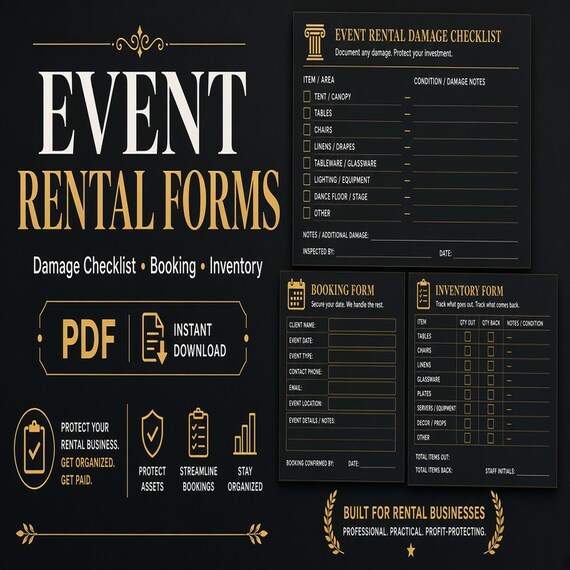
Party Rental Forms
Track bookings, rental items, checkout condition, damage notes, deposits, returns, and inventory follow-up.
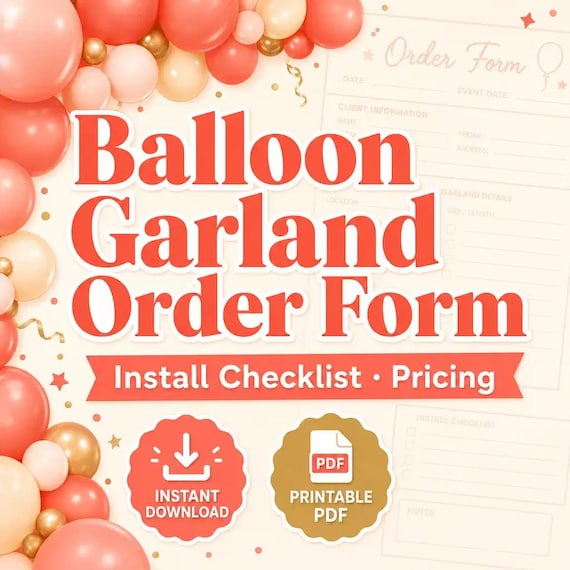
Balloon Order Form
Track client requests, garland footage, color palettes, install notes, add-ons, and setup-day checklists in one kit.
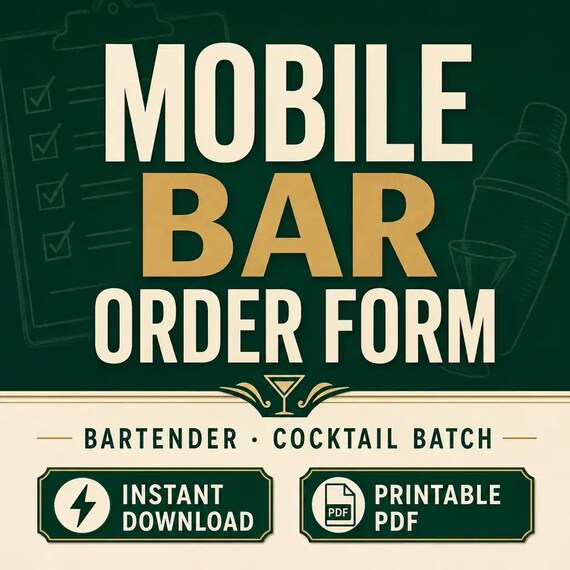
Mobile Bar Business Forms
Plan event drinks, batches, shopping lists, garnish prep, and bar-service notes without messy one-off spreadsheets.