Small Business Templates · Aug 1, 2026 · 14 min read
Micro Bakery Porch Pickup Workflow: Organize Orders, Labels, and Handoffs
A practical setup for moving home-bakery orders from confirmation to batch notes, bag labels, pickup instructions, staging, and a clean customer handoff.
Start by matching the included files to the pickup job
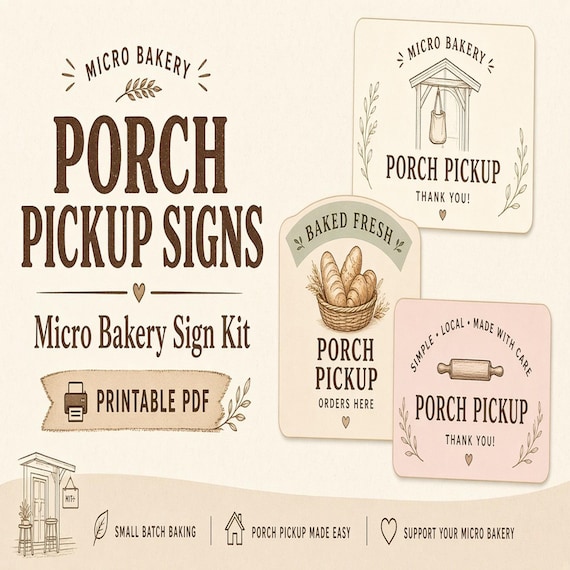
The featured SteadyStackStudio download is currently described as a digital ZIP for home bakeries, sourdough sellers, cottage bakeries, and porch-pickup businesses. It includes an Excel pickup and order tracker, printable pickup signs and bag labels in PDF format, editable pickup cards in PowerPoint format, a quick-start PDF, and a README or license note. That combination can connect the order list to the printed pieces used at pickup, but it is still a set of files that you configure and maintain. It is not a shipped sign set, a point-of-sale system, an ordering app, an automatic messaging service, or a fulfillment service.
Open the quick-start file first, keep the delivered files unchanged, and make working copies before editing. Confirm that your device can open XLSX and PPTX files and that your printer can produce a readable sample from the PDF. The kit does not provide food-safety, ingredient-labeling, licensing, tax, or cottage-food compliance guidance. Use the files for organization only, and get the rules that apply to your products, location, storage, labels, and pickup method from the responsible local sources before taking orders.
- Expect digital XLSX, PDF, and PPTX files rather than physical signs or labels.
- Keep a clean original and edit a separate working copy.
- Test the spreadsheet software, PowerPoint editing, and one printed page before setup.
- Treat legal labels, food handling, and local permissions as separate requirements.
Choose one order reference and one source of truth
Every order needs a short reference that remains the same from confirmation through collection. A simple pattern might combine the pickup date with a sequence number, such as AUG08-03. The exact pattern is your choice; the important part is that it is unique, easy to read aloud, and not reused for a different customer. Put that reference in the tracker, on the working batch note, and on the pickup card or bag label so the digital row and the prepared order can be compared without guessing.
Decide where the current order status lives. For this workflow, the Excel tracker should be the source you check before changing a sign, card, or printed list. You can create a status sequence that fits your business, such as received, confirmed, planned, packed, ready, collected, and closed. Those are suggested workflow labels, not a claim about prebuilt fields in the workbook. If you also take notes in messages or on paper, move the final decision back to the tracker so one late change does not leave three conflicting versions of the order.
- Assign the order reference as soon as you accept the order.
- Repeat the same reference on internal notes and customer handoff pieces.
- Define what each status means before a busy pickup day.
- Record the final version in one current tracker instead of several loose lists.
Set up the tracker before entering a live order
Create a dated working copy of the Excel file and enter one fictional test order first. Decide which details you need to record in the workbook or alongside it: order reference, customer-facing name, item, quantity, agreed pickup date or window, current status, payment state if you track it there, special note, and the next follow-up. Only collect information that has a clear business purpose. Avoid placing unnecessary addresses, full payment details, health information, or other sensitive material into a pickup list that may be printed or viewed by helpers.
Check how a long product name, multiple items, a changed quantity, and a pickup note look in the row. Sort or filter the test data the way you expect to use it on pickup day, then save, close, and reopen the workbook. If you add columns or change labels, document those changes in a small setup note. Do not overwrite formulas or protected-looking areas until you understand their purpose. A good setup is not the one with the most fields; it is the one that lets another careful person find the correct order, see its current state, and identify the next action without opening a message thread.
- Use a fictional order to test the complete row before entering customer information.
- Keep only details needed to prepare, identify, and hand off the order.
- Test sorting, saving, closing, and reopening on the device you will use.
- Write down any custom columns or status definitions you add.
Separate the customer promise, the production batch, and the handoff
A pickup order passes through three related but different views. The customer promise records what was agreed: the item, quantity, pickup timing, and any confirmed option. The production view groups work in the way you prepare it, such as by product or bake schedule. The handoff view returns to the individual order reference so each finished package reaches the right person. Mixing all three views on one loose page makes it easy to prepare the correct total quantity but divide it incorrectly at pickup.
Use the tracker to preserve each individual order, and use batch notes only to combine work that truly belongs together. When a batch is complete, reconcile the total prepared quantity against the individual order rows before packing. Then return to one order at a time: pack it, apply the matching identifier, update its status, and place it in the assigned pickup position. If one order changes after the production plan is made, update both the individual row and the affected batch note rather than relying on memory.
- Keep the confirmed customer order intact even when several orders share a batch.
- Compare batch totals with the sum of individual quantities before packing.
- Pack and mark one order at a time after the batch count is checked.
- Carry every accepted change into both the order row and the production note.
Turn each pickup day into a controlled queue
Before the pickup window begins, make a pickup-day view that contains only the orders expected that day. Depending on your setup, that may be a filtered workbook view or a printed working list. Arrange it in the same sequence you plan to stage orders: by pickup window, order reference, or another simple method that is easy to maintain. The purpose is to prevent future orders, draft requests, and completed orders from crowding the handoff list.
Review capacity before confirming more orders for the same window. The template cannot determine how much you can bake, package, store, or hand off safely. Use your own tested limits and the rules that apply to the business. Shortly before pickup, check that every order on the day list has a current status and a matching prepared package or a clear exception note. Do not mark an order ready simply because its batch is finished; ready should mean that the individual order has been packed, identified, and placed where your handoff process expects it.
- Create a view containing only the orders due for the current pickup day.
- Arrange the list in the same order used for physical staging.
- Set pickup capacity from your real preparation and handoff limits.
- Reserve ready for orders that are packed, identified, and correctly placed.
Use bag labels as order-matching tools
For internal order matching, a label should make the package easy to compare with the tracker. A short order reference, customer-facing name, item or variant, quantity, and pickup date may be useful, depending on how you run the business. Keep the most important identifier large enough to read in the lighting and position where the order will be staged. Print one representative label, attach it to the type of package you actually use, and check that folds, handles, tape, or condensation do not hide the matching information.
Do not confuse an order-matching label with a legally sufficient food label. The included templates do not tell you which product name, ingredient, allergen, producer, date, weight, storage, or disclosure information your location may require. Confirm those requirements separately and revise your finished materials accordingly. Keep private contact information off anything another customer could see. If the same printed piece must carry both order-matching and required product information, test the full layout for readability rather than shrinking everything until it technically fits.
- Make the order reference easy to see and identical to the tracker entry.
- Test the label on the real package instead of judging it only on screen.
- Verify required food-label content with the rules that apply to your business.
- Keep phone numbers, email addresses, and other private details out of public view.
Write pickup instructions people can act on
A useful pickup card answers the immediate questions without requiring the customer to search an old conversation. State the agreed date or window, the place they should look or wait, how the order will be identified, and what contact method to use if something is missing or the customer is delayed. Use the editable PPTX pickup cards for wording you are authorized and prepared to follow. Keep the message short enough to scan on a phone, and send or display it at the point in the process where it is most likely to be used.
Share only the location and access details needed for the handoff, and review security, property, lease, neighborhood, insurance, and local-business considerations before directing customers to a home. A printable porch sign can guide an expected customer, but it cannot verify identity, protect an unattended order, manage weather, or make a pickup arrangement permissible. Decide what happens when the pickup area is unavailable, conditions change, or the customer arrives outside the agreed window. The instruction is complete only when it includes a safe fallback you can actually provide.
- Include the date or window, pickup point, order identifier, and contact path.
- Keep instructions brief enough to use at the moment of collection.
- Limit address and access details to what the handoff genuinely requires.
- Define a realistic fallback for delays, weather, or an unavailable pickup point.
Stage the handoff so the tracker and the physical order agree
Choose a staging layout with one clearly defined position for each order or pickup window. The layout can be simple, but it should make two orders with similar names or packaging hard to confuse. Place the order reference so it can be checked without opening or handling another customer’s package. Keep a separate exception area for anything incomplete, changed, or awaiting a decision; an unresolved package should never look ready merely because it is near the pickup area.
Run a final match before collection begins: tracker row, order reference, item, quantity, package label, pickup card, and staging position. If another person helps with handoff, give them the pickup-day view and the meaning of each status, not your entire archive. Follow the storage, temperature, contamination, weather, pest, and access controls required for the products and location; the template does not supply or validate those controls. When an order is collected, update its status promptly so a message, empty space, and workbook row do not tell three different stories.
- Give every ready order one unambiguous physical position.
- Keep incomplete or disputed orders outside the ready area.
- Match the row, identifier, contents, label, card, and location before pickup.
- Update the collected status as part of the handoff, not hours later.
Plan for edits, no-shows, and partial collection
Changes are easier to manage when the original agreement and the accepted revision remain understandable. Record the updated quantity, time, item, or note in the current row, then mark the old detail as replaced instead of leaving two active instructions. If the change affects a batch, package, label, or pickup card, update each affected piece and complete another final match. Put a cutoff on late changes only if it reflects a policy you have chosen, communicated, and checked against the requirements that apply to your business.
For a no-show, record the attempted contact and the next agreed action without guessing at the customer’s situation. Move the order out of the active pickup position according to your safe storage process, and do not mark it collected. For a partial handoff, record exactly what left and what remains; do not close the full order simply because one package was taken. Refunds, remakes, abandoned orders, payment disputes, and disposal decisions need your own policies and applicable guidance. The tracker helps preserve the facts, but it does not decide the outcome.
- Replace outdated instructions clearly instead of keeping two active versions.
- Repeat the package and staging check after any accepted change.
- Keep no-show and partial-pickup statuses factual and specific.
- Use your established policies and applicable rules for money or disposal decisions.
Run one complete test pickup before opening a full schedule
Use a fictional customer and walk one test order through every step: enter it, assign the reference, add a batch note, change a detail, print a bag label, edit a pickup card, print or display a sign, stage the package, mark it collected, and close the row. Ask a trusted helper to use only the materials they would actually receive on pickup day. If they cannot identify the correct order or next action without extra explanation, simplify the reference, status wording, print layout, or staging sequence.
Check the physical experience as carefully as the workbook. View the customer instruction on a phone, read the sign from the approach you intend to use, and inspect the label in ordinary light. Test whether the printed pages remain legible at the chosen scale and whether the editable card still looks clear after real wording is added. Consider the fallback route for rain, poor lighting, a blocked path, or a delayed arrival without pretending the template solves safety or property concerns. A successful test ends with one tracker row and one physical order that agree at every checkpoint.
- Test the entire path with fictional data before using customer information.
- Include a change, print step, staging step, handoff, and closeout.
- Let a helper try the process without relying on unwritten knowledge.
- Fix the first confusing checkpoint before adding more orders.
Close the week without losing the order trail
At the end of the pickup cycle, review every row that was due. Resolve orders still marked ready, changed, or awaiting contact, and close only those whose handoff is complete. Keep completed orders out of the next active queue while preserving whatever business record you are required or have a legitimate reason to retain. If you make a weekly archive copy, name it with the date range and store it in a location with appropriate access and backup rather than leaving several mystery versions on the desktop.
Remove temporary printouts and staging labels according to the sensitivity of the information they contain. Limit workbook access to people who need it, and do not retain customer details indefinitely merely because the spreadsheet has room. Decide how corrections will be made after closeout so the historical record remains understandable. Then note one friction point from the week: a repeated late change, an unclear status, a label that was hard to read, or a pickup window that was too crowded. Adjust one part of the next cycle and test it instead of rebuilding the whole system after every order.
- Review every due row and resolve open statuses before archiving the week.
- Name archive copies clearly and protect access to customer information.
- Dispose of temporary pickup materials appropriately after use.
- Improve one repeated point of friction in the next cycle.
Choose the download that matches the real bottleneck
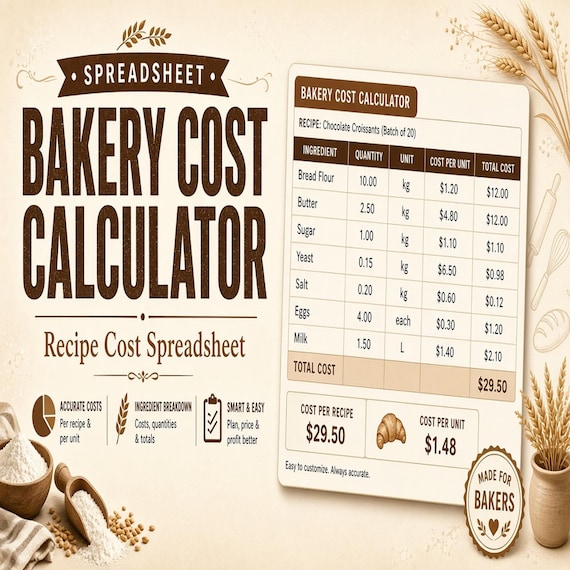
Choose the featured Micro Bakery Porch Pickup Sign Kit when the main need is a connected pickup and order tracker plus printable signs and bag labels, editable pickup cards, and setup instructions. Choose the Bakery Cost Calculator when the harder task is ingredient costs, batch scaling, quotes, margins, or restocking rather than the physical pickup handoff. The broader Product Pricing Calculator and Handmade Pricing Calculator fit businesses that need materials, labor, fees, margin, or inventory work across several kinds of products instead of a bakery-specific pickup system.
The Charcuterie Order Form is the closer fit for board or grazing-table orders, pricing, prep, and editable label or menu cards. The Side Hustle Income and Expense Tracker and the Profit and Loss Spreadsheet support broader money records and monthly review; they do not replace the pickup tracker, product labels, or local compliance work. Compare the current product previews and file lists before checkout. Buy the smallest complete download that addresses the step creating the mix-up today, and add a second tool only when a separate costing, pricing, inventory, or bookkeeping job is clear.
- Use the micro-bakery kit for order-to-pickup organization and printed handoff pieces.
- Use the bakery calculator when recipe costs, batch scaling, and margins are the main problem.
- Use broader pricing or bookkeeping files only for those separate business jobs.
- Do not buy several overlapping trackers before deciding which file will be the master.
Use a three-order fit test before expanding
After the fictional walkthrough, use the system for a small group of real orders that your business is already permitted and prepared to fulfill. Keep the same order-reference pattern, status meanings, label layout, instruction format, and staging sequence for all three. At closeout, ask whether you could find the current order quickly, whether the prepared package matched the row, whether the customer instructions answered the practical handoff questions, and whether the collected status was updated without delay.
Keep the setup if it reduces searching and makes the final match easier. Simplify it if the tracker demands duplicate entry, the printed pieces are hard to maintain, or helpers still rely on private messages and memory. Stop and resolve the underlying rule, food-handling, property, security, or software issue if the problem falls outside the template’s role. The best porch-pickup system is not the most elaborate one; it is the smallest repeatable chain that keeps the agreed order, prepared package, customer instruction, and final handoff aligned.
- Use the same workflow for three small orders before increasing volume.
- Check findability, package matching, instruction clarity, and prompt closeout.
- Simplify any step that creates duplicate records without preventing errors.
- Keep compliance and safety decisions outside the template and with the proper sources.
Printables used in this guide
Instant downloads from the SteadyStackStudio Etsy shop.
Micro Bakery Order Form and Sourdough Labels
Organize porch pickup orders, bag labels, batch notes, and customer pickup instructions in one premium kit.
Bakery Pricing Calculator Spreadsheet
Stop underpricing cakes, cookies, and cottage bakery orders. This is an instant digital download designed for buyers who want a…
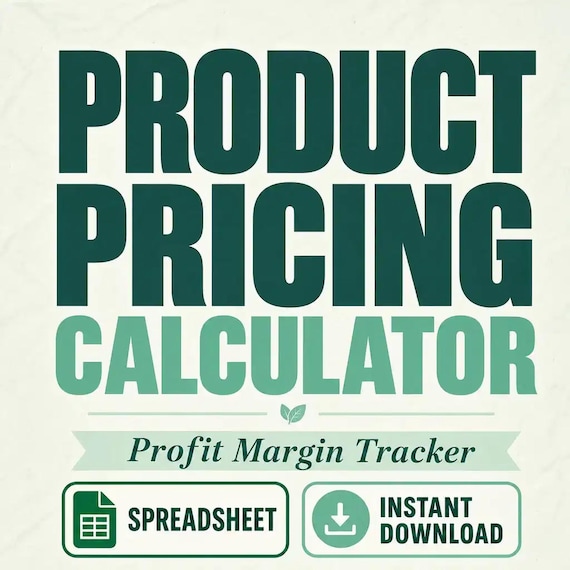
Product Pricing Calculator Spreadsheet
Product Pricing Calculator Spreadsheet with Small Business Profit Margin, Cost of Goods, Wholesale and Retail Price Excel PDF…
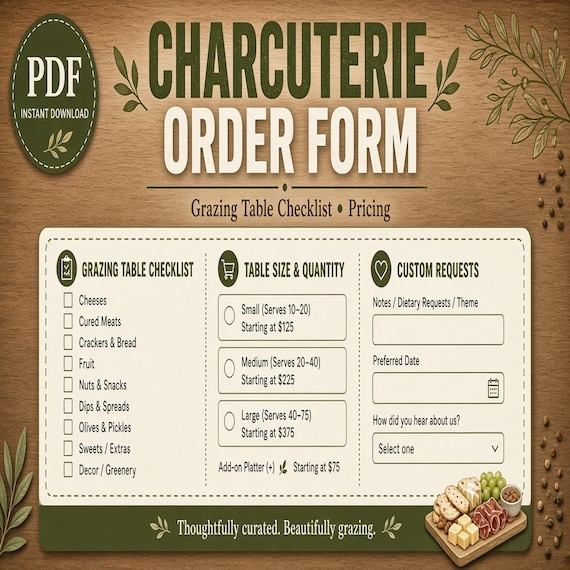
Charcuterie Order Form
Plan board sizes, ingredient prep, customer requests, pickup details, labels, and quote estimates in one kit.