
Teacher & Classroom · Sep 15, 2026 · 17 min read
PTO Book Fair Planner Setup: Volunteer Slots, Cash Counts, Restock Lists, and Closeout
A practical setup plan for the PTO book fair planner: confirm the Excel, cash-count PDF, and sign files, freeze one fair identity, fill volunteer slots before opening, count cash on paper, keep restock notes next to the floor, and hand the closeout to the next person the same day.
Confirm what the current download includes
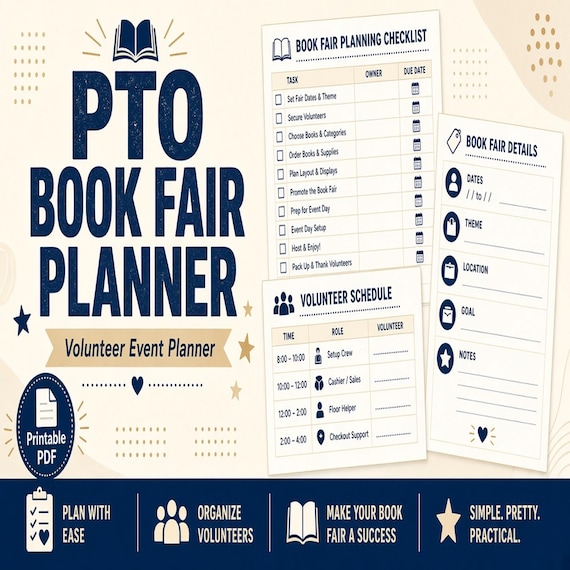
Start with the files the current listing actually describes. The SteadyStackStudio PTO Book Fair Planner is a digital template kit for PTO and PTA volunteers, school event chairs, book fair coordinators, and parent teams who want one cleaner place for volunteer slots, cash counts, budget notes, restock lists, and closeout handoff. The listed contents are an Excel book fair budget and volunteer tracker, printable cash count and event pages as PDF, editable signs and volunteer cards as PPTX, a Quick Start PDF, and a README or license note. It is an instant digital download. No printed binder, cash box, card reader, book cases, or school supplies ship.
Open the unzipped folder and compare it with that list before anyone types a live shift into the workbook. Confirm you received the Excel file, the cash-count PDF, and the PowerPoint signs. This page does not add Google Sheets as a named format, a live volunteer form, a publisher inventory login, or a payment terminal. If the Quick Start PDF or a README is in the folder, read it before you duplicate the files for a co-chair or a second school.
The listing is also explicit about scope. These files help you organize a school event. They are templates only. They are not accounting, fundraising, tax, legal, safety, licensing, or school-policy advice, and they do not replace the cash-handling rules your school or parent group already uses. You remain responsible for filling every sheet with current facts for the fair you are actually running. Personal or single-group use for the purchasing buyer is the usual digital-download rule. Do not resell, share, or redistribute the raw template files.
- Verify that the download matches the listed Excel tracker, cash-count PDF, PPTX signs and volunteer cards, Quick Start PDF, and README or license note.
- Confirm Excel plus printable PDF plus PowerPoint. Do not expect a named Google Sheets file, a publisher portal, or a shipped cash box.
- Read the Quick Start and any license note before a second person edits the working copy.
- Treat the pack as editable event paperwork, not as accounting software or a book-fair contractor system.
Decide whether a book-fair event pack is the missing job
This pack fits when the friction is one book fair, not a whole year of parent-group meetings. A year-round PTA or PTO operations pack can hold agendas, sponsor notes, and a fundraiser calendar. That is useful. It is not the same as a grid a floor volunteer can follow for a two-hour checkout shift, a cash-count page that can sit next to the till, and a restock list that does not live in a group chat. The useful question is not “does the cover look like a school planner.” It is “can one fair name, one volunteer slot, one cash count, one restock note, and one closeout travel together.”
It also fits when you already have a book-fair contractor account and still lose the parent-team trail. Coordinators often keep the contractor login in email, the volunteer list in a form, the starting cash in a text, and the “we are out of graphic novels” note in someone’s head. That works until the evening shift arrives, the cash box changes hands, or the chair is in the hallway. An Excel tracker plus printed cash-count pages plus editable signs is a better match for that job than a household budget with a line that only says “book fair.”
Skip this pack, or use it only as a neighbor, if the real need is year-round meeting minutes, a grant pipeline, a classroom sub binder, or a family reunion. Those jobs live in their own downloads. Skip it if you only wanted the contractor’s own host hub for cases, e-wallets, flyers, or payment hardware. Those tools still matter. This kit organizes your team’s slots and cash notes beside them; it does not replace them. Choose the smallest complete download that matches the missing job.
- Use this pack when one fair’s volunteer slots, cash counts, budget notes, restock lists, and closeout are the gap.
- Use it when a printed cash page and an Excel grid need to describe the same event.
- Do not expect a publisher inventory, a card reader, or a shipped volunteer binder.
- Do not buy it first if the real need is year-round PTA meetings, grant tracking, or classroom paperwork.
Protect the master and make a working copy
Download the ZIP once, unzip it into a folder you will not edit, and duplicate that folder for this fair. Name the master something obvious, such as original-pto-book-fair-planner, and leave it closed. All school names, shift times, cash figures, and restock experiments happen in the working copy. If a formula cell is overwritten or a cash-count print is cropped, you still have the listed files for the next event.
Keep the three working formats in their roles. Use Excel for volunteer slots, budget notes, restock lists, and status you need to sort. Print the PDF when a cash count or event page has to sit on a clipboard. Edit the PowerPoint file when a door sign or volunteer card needs this fair’s name and hours. Do not treat the PDF as the only volunteer list if the workbook is where shifts actually live. Do not invent a fourth unofficial version in a messages thread that uses different times.
Write a one-line use note in the working folder: this school, this fair, this chair. That note stops last spring’s file from being handed to a new volunteer as if the hours and cash starting amount were still true. Finished-group use is not the same as redistributing the raw pack. If more than one person will type into the workbook, keep one live working copy and a short rule about who may change shift times or cash figures.
- Unzip once, keep a locked master, and edit only a duplicate.
- Use Excel for the live grid, PDF for traveling cash and event pages, and PowerPoint for signs and cards.
- Write the school and fair name on the working folder so last year’s copy is not reused blindly.
- Follow the listed license: group use is not the same as reselling the raw pack.
Give the fair a stable identity before the first shift
A volunteer grid is useless if nobody can tell which event it belongs to. Before the first live entry, decide how this fair will be named on every sheet. Use the school people actually say, plus the season and year, such as maple-elementary-fall-2026. Write the same identity on the Excel tracker, the printed cash-count pages, the restock list, the closeout note, and the PowerPoint signs. If two fairs share a folder, the identity is what stops Thursday’s cash page from traveling with Friday’s volunteer card.
Open the Quick Start PDF first, as the listing instructs. Use it as the cover rule for the packet, not as decoration. Record where the finished working copy lives, who may update it, and which room or hallway the fair occupies if the school runs more than one sale at once. If you print one clipboard pack per register, label the clipboard with that identity plus a simple station name, such as checkout-a.
List what “current” means. A useful first status is grid-complete, cash-pages-printed, signs-ready, or closeout-pending. Pick a short list and do not invent a new word after every shift. The printed packet is the place for that status when the person at the table cannot open the chair’s laptop. If you later add a date on a closeout line, use the same fair identity there instead of a nickname only one parent understands.
- Give the fair a short identity that appears on the workbook, cash pages, restock list, and signs.
- Read the Quick Start before decorating later pages.
- Say where the finished copy lives and who is allowed to change shift times or cash figures.
- Do not keep a second unofficial event name in a chat thread.
Freeze volunteer slots as short, named jobs
Fill the volunteer tracker with jobs people can actually show up for. Short slots, often one to two hours, are easier to staff than an all-day ask. Name the job in plain language the sign-up can repeat: setup, floor helper, checkout, restock, or cleanup. Write the start and end time, the station, and who the volunteer should find if the table is already full. A row that only says “help” will be ignored at 7:45 a.m.
Match the card to the grid. If you print volunteer cards from the PowerPoint file, the role name and time on the card must match the Excel row. Do not invent a hallway job on a card that does not exist in the workbook. Do not leave the workbook as the only copy if the person working the door will never open Excel. The kit is built for both: a tracker you can sort, and a card someone can wear or hold.
Keep personal details small. Record the name and a way to reach the volunteer for that shift. Do not paste a full parent directory into the working copy. If a school rule limits what you may store on a shared laptop, follow that rule. The files do not create a private parent database. After the fair, return to the master rather than leaving last year’s phone numbers in a file that gets forwarded.
- Write short, timed slots with a job name a new volunteer can understand.
- Match PowerPoint volunteer cards to the same role and time as the Excel row.
- Keep contact details limited to what the shift actually needs.
- Do not leave last year’s roster in the working copy you will hand to the next chair.
Put budget notes in the workbook, not in a second unofficial list
Use the Excel budget area for the numbers this fair actually cares about: starting cash you were given, expected spending you already approved, and notes that explain a line. Write the date and the fair identity on those notes. Separate “we hope to take in” from “we counted at close.” Mixing those two in one unlabeled cell is how a later treasurer gets a number nobody can defend.
The listing is not accounting software. It will not file a tax form, reconcile a school bank account, or decide how your group splits profit with a contractor. If your school requires two people to handle cash, or a paper tape from a till, follow that procedure and use the workbook as the place you record that it happened. Do not type a contractor portal total into a cell labeled as a cash count unless you also write the source.
When a number changes, change it in one place. If the chair texts a new starting-cash amount, update the working workbook and the printed cash page together, then destroy or mark the old print. Two starting amounts in two places is worse than a slightly messy sheet that is true. Leave calculated cells alone unless you know why you are changing them.
- Record starting cash, approved spending notes, and actual counts as separate facts.
- Date every budget note with the fair identity.
- Follow school cash rules; the workbook does not replace them.
- Update the working copy and the printed cash page together when a number changes.
Print cash-count pages and count with a second person
Print the cash-count PDF at the size that will sit on the clipboard next to the box. Fill the fair identity, station name, date, and opening amount before the doors open. Count bills and coin in the order the page gives you. Write the names of the people who counted. A cash page with no names is a story, not a count.
Plan a mid-fair count if the box will be heavy or if a shift change happens at lunch. Use a fresh line or a fresh page rather than erasing the morning numbers. The point of the printable page is that the next volunteer can see what was true at 11:00 without opening the chair’s laptop. If your school requires a till tape or a second form, keep that form with the PDF rather than copying totals into a notes app.
This page is not a card reader, an e-wallet, or a contractor payment system. Card and online totals belong in a clearly labeled note if you record them at all, not in the cash columns. At close, count again with a second person when your group’s rules allow it, then move those figures into the closeout handoff the same day. Do not leave a completed cash page in a shared classroom overnight without a plan for who holds it.
- Print the cash-count page, label the fair and station, and write who counted.
- Start a new line or page at a shift change instead of erasing the first count.
- Keep card or online totals out of the cash columns.
- Count again at close and move the page into the same-day handoff.
Keep restock lists on the floor, not in a chat thread
A restock list only works if the person walking the cases can write on it. Print or keep the list next to the floor, not only in the chair’s email. Use the fair identity at the top. Write what is low, which case or table it came from, and the time. “Need more books” is not a restock note. “Graphic novels, back wall, 1:10 p.m.” is.
Decide who is allowed to mark the list. One restock volunteer per shift is enough. If every helper edits a shared message thread, the Excel tracker and the floor list will disagree within an hour. When a case is refilled, mark the list and, if the workbook has a restock or status area, update that row at the next quiet moment — not during a checkout line.
This kit is not the contractor’s inventory of cases. It will not tell you what the publisher shipped, what is in an online catalog, or what a family already reserved. Use contractor tools for those facts. Use this restock list for what your team sees on the floor during the hours you are open. At closeout, the leftover restock notes are part of the handoff, not scrap paper for the recycling bin.
- Keep a labeled restock list where the floor volunteer can write on it.
- Record the title or category, the location, and the time.
- Give one person per shift the job of marking the list.
- Carry leftover restock notes into closeout instead of throwing them away.
Edit signs and volunteer cards so they match the grid
Open the PowerPoint file for door signs and volunteer cards after the Excel grid is stable. Put the fair identity, hours, and room on the sign a family will actually see. Put the role name and shift time on the volunteer card. If the workbook says checkout 10:00–12:00, the card cannot say “morning help.” Test-print one sign and one card before you run a full set. Check margins, ink, and whether a name still fits after you type a long school title.
Keep signs boring and true. Hours, location, and a simple “volunteers check in here” line beat a decorated poster that still has last year’s dates. If you need a contractor flyer, use the contractor’s files for that job. This PowerPoint pack is for your team’s labels, not for replacing a publisher’s promotional set.
Store the working PowerPoint next to the working Excel file. When a shift time changes, change the card and the grid together. Print a small extra stack of blank volunteer cards for walk-up helpers, then write the time by hand only if the Excel row exists first. A handwritten card with no matching row is how two people show up for the same hour and nobody covers cleanup.
- Edit signs and cards only after the volunteer grid is stable.
- Test-print one sign and one card before a full run.
- Match every card’s role and time to an Excel row.
- Update the card and the grid together when a shift changes.
Close the fair the same day, then file the packet
Closeout is a handoff, not a feeling that the gym is empty. The same day, gather the final cash-count page, the restock leftovers, the volunteer grid as it actually ran, and a short note about anything that broke: a missing starting-cash bag, a shift that never arrived, a table that sold out. Write the fair identity and the date on that packet. Give it to the person your group named — treasurer, chair, or school contact — using the method that group already uses.
Do not wait until the weekend to reconstruct numbers from memory. The printable cash page and the Excel tracker are useful only if they still agree when someone else opens them. If they disagree, write both figures and the reason on the closeout note rather than silently picking the friendlier number. The files will not decide that for you.
When the handoff is done, return to the locked master for the next fair. Archive the working copy with the fair identity in the folder name. Do not keep live parent phone numbers in a file you will later send as an example. Keep a blank copy, as the listing suggests, so spring does not start by deleting fall’s counts by hand.
- Build the closeout packet the same day: cash page, restock leftovers, actual volunteer grid, and exception notes.
- Hand it to the named treasurer or chair using your group’s existing method.
- Write both figures if the cash page and workbook disagree, plus the reason.
- Archive the working copy and go back to the blank master for the next fair.
Run a ten-minute stranger test before opening
Before families arrive, hand the clipboard to someone who did not build the grid. Ask them to find their shift, the cash-count page, the restock list, and the person they should ask if the line stalls. Time it. If they need the chair’s phone, a hallway tour, or a follow-up text you did not write down, fix the working copy. The test is the point. A pretty packet that still requires you to narrate the morning has not done the job.
Print one test set at the size you will actually use. Check handwriting space on the cash page, whether a volunteer card cuts off a time, and whether the restock list has a line tall enough for “early readers, front table.” If a heading wraps badly, fix the PowerPoint or the print settings and reprint the test. Keep that test packet in the working folder as the example of a complete fair.
Write a one-page team rule next to the working copy: which pages a floor volunteer sees, where the cash box lives, who updates restock, and who receives closeout. The files do not create that rule for you. A short rule plus an untouched master is the method that matches an Excel, PDF, and PowerPoint kit. If the test shows you also need year-round meeting minutes, a grant calendar, or a classroom sub binder, stop and compare those downloads instead of stretching book-fair headings until they pretend to cover every job.
- Ask someone else to find their shift, the cash page, and the restock list from the packet alone.
- Print a test set and check handwriting space before opening day.
- Write a short filing and cash rule next to the working copy.
- Compare a neighboring kit if the test reveals a different missing job.
Who this fits, who should skip it, and what to check before Etsy
This setup fits parent groups and school event chairs who already have a book fair on the calendar and need one consistent path from volunteer slot to cash count to closeout. It is especially useful when more than one person will sit at checkout or walk the floor. A printed cash page that can sit on a clipboard and an Excel grid you can update after a shift change match that rhythm better than a long email nobody files. It is a weaker fit if you already keep a complete, current fair packet and only wanted a decorative cover, or if the real gap is year-round parent-group paperwork.
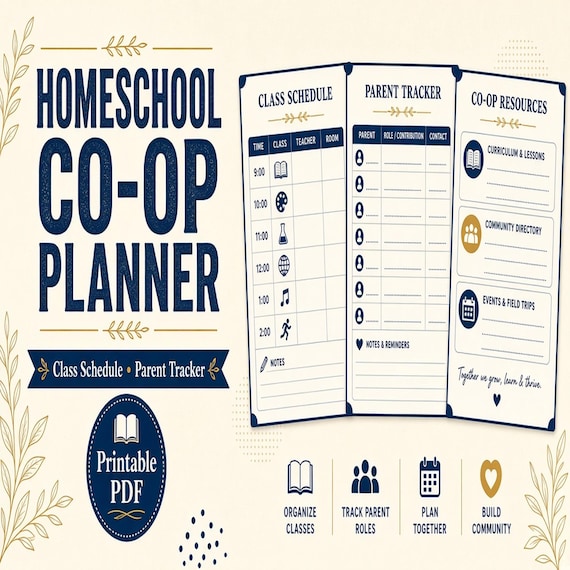
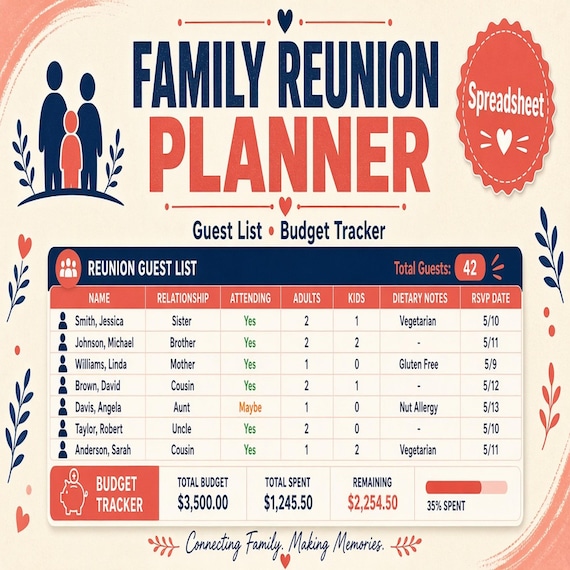
Choose a neighboring download when the job is not one book fair. The PTA and PTO meeting pack is for agendas, fundraiser calendars, sponsor notes, and officer handoff across a school year. The homeschool co-op planner is for class schedules and a shared-term volunteer roster. The family reunion planner is for RSVPs, meals, and a family event, not a school sale. The nonprofit grant tracker is for applications and deadlines. The HOA meeting workflow is for board agendas, minutes, and action follow-up. Household budget bundles track personal money; they are not a cash-count clipboard for a gym.
Use the SteadyStackStudio product preview as a final check. Confirm the title, price, file type, preview image, and related downloads all point to volunteer slots, cash counts, budget notes, restock lists, and closeout. A good match should show Excel, a cash-count PDF, and PowerPoint signs, not a shipped binder and not a contractor payment login. Once the product page and Etsy listing agree on what is included, the Etsy click is the checkout step rather than a blind jump. After checkout, run the ten-minute stranger test before the first family walks in. The files help you keep a clearer record. They do not replace school cash rules, a contractor host hub, or a conversation you still need to have with the person who will hold the box.
- Good fit: parent teams that need one fair’s volunteer slots, cash counts, restock lists, and closeout in one kit.
- Weaker fit: buyers who already have a current fair packet, or who needed year-round meetings, grants, or classroom pages.
- Compare the PTA meeting pack, homeschool co-op planner, grant tracker, or HOA meeting guide when those jobs are the real gap.
- Check the preview images and file details before opening Etsy, then test the packet with a stranger before opening day.
Printables used in this guide
Instant downloads from the SteadyStackStudio Etsy shop.
Book Fair Planner
Give the book fair team one cleaner place for volunteer slots, cash counts, budget notes, restock lists, and closeout handoff.
Homeschool Co-op Planner
A calm, practical download for homeschool co-op leaders, volunteer coordinators, class instructors, and parent committees…
Family Reunion Planner Spreadsheet
A practical digital template bundle built around an urgent buyer need: Budget, RSVP, family groups, itinerary, meal planning…
Grant Tracker Spreadsheet for Nonprofits
Track opportunities from first screen through submission, award setup, deliverables, spending, reporting, and closeout so…


