
Creator & Side Hustle · Sep 12, 2026 · 16 min read
Video Channel Revenue Tracker Setup: Log Videos, Revenue Sources, and a Monthly Dashboard
A practical setup plan for the video channel revenue and content tracker: confirm the Google Sheets pieces, give every video a stable identity, copy performance and revenue-by-source figures from your channel analytics, keep estimates separate from money that actually arrived, and close the month on the dashboard without mixing the channel into a household budget.
Confirm what the current download includes
Start with the files the current listing actually describes. The SteadyStackStudio video Channel Revenue Analytics & Content Tracker is a Google Sheets toolkit for creators who want one place to see where channel money is coming from and which videos are worth a closer look. The listed contents are a video performance tracker, revenue by source (the listing names ads, Super Thanks, memberships, and similar sources), a content calendar and ideas log, a monthly analytics dashboard, and automatic calculations. It is an instant digital download. No physical planner, printed calendar, camera, or studio hardware ships.
Open the unzipped folder and compare it with that list before you type a live video into the file. The listing title names Google Sheets. Confirm the file you actually received — a Google Sheets file, a workbook you can open or upload in Sheets, or both — from the listing and the folder, not from a guess. This page does not add Excel, a your channel analytics connection, an AdSense login, a tax form, or a live shared channel database. If a license or README note is in the folder, read it before you duplicate the file for an editor, a VA, or a second channel.
The listing is also explicit about the job. This is a channel organization template for video performance, revenue sources, a content calendar, and a monthly dashboard. It is not tax, legal, accounting, or professional advice, and it does not promise that every video Partner Program feature is turned on for your channel. You remain responsible for video policies, monetization eligibility, payout timing, and any tax records your location requires. Single-buyer, single-business use inside your own channel work is the usual digital-download rule. Do not resell, share, or redistribute the raw template files.
- Verify that the download matches the listed video performance tracker, revenue-by-source area, content calendar and ideas log, monthly dashboard, and automatic calculations.
- Confirm the Google Sheets file you received before you treat it as an Excel-only workbook.
- Read any license note before a second person opens a working copy.
- Treat the pack as editable channel paperwork, not as a Studio login, payout processor, or shipped planner.
Decide whether video tracking is the missing job
This pack fits when the friction is a channel you cannot explain at a glance. your channel analytics already shows performance and, when you are eligible, a revenue view for the channel or for one video. The spreadsheet job is different: keep a working copy you can sort, annotate, and close at the end of the month without hunting through Studio screenshots. The useful question is not “does the cover look like a creator dashboard.” It is “can one video identity, one performance row, one revenue-source split, and one calendar note travel together.”
It also fits when you already glance at Studio and still lose the operating trail. Creators often keep titles in a notes app, estimated ad figures in a screenshot, membership income in email, and next-week ideas in a chat thread. That works until a month-end question arrives — which videos you published, which sources actually paid, and what you planned next — and none of those places agree. A Sheets file with a performance tracker, a source split, a calendar, and a monthly dashboard is a better match for that job than a household budget with a line that only says “video.”
Skip this pack, or use it only as a neighbor, if the real need is creator platform payouts and costs, Etsy listing fees, a brand-deal invoice kit, or a full profit-and-loss workbook for every business. Those are different downloads with different columns. Skip it if you only wanted your channel analytics itself, an auto-import from AdSense, or a printed wall calendar. Choose the smallest complete download that matches the missing job, then keep platform-specific money files as their own records.
- Use this pack when video performance, revenue by source, a content calendar, and a monthly dashboard are the gap.
- Use it when Studio numbers need a working copy you can close at month-end.
- Do not expect a video login, an AdSense connection, or a shipped planner.
- Do not buy it first if the real need is creator platform payouts, Etsy fees, brand-deal invoices, or a household budget.
Protect the master and make a working copy
Download the files once, keep an untouched master, and work in a duplicate. In Google Sheets, the usual method is to make a copy rather than typing into the file you might later re-download from Etsy. Name the master something obvious, such as original-youtube-channel-tracker, and leave it closed. All live video titles, source amounts, and calendar experiments happen in the working copy. If a formula cell is overwritten or a month tab gets messy, you still have the listed files.
Keep the pieces in their roles. Use the video performance tracker for published (or scheduled) videos. Use the revenue-by-source area for ads, Super Thanks, memberships, and any other source you actually receive. Use the content calendar and ideas log for what you plan to make, not as a second scoreboard. Use the monthly dashboard as a close, not as a place to invent daily totals that never got a source row. The listing includes automatic calculations. Leave calculated cells alone unless you know why you are changing them.
Write a one-line use note in the working folder: this channel only, this brand only, or planning copy. That note stops the same file from being handed to an editor on Tuesday and used as a private tax worksheet on Friday without a fresh review. Finished-business use is not the same as redistributing the raw pack. If more than one person will type into the file, keep one live working copy and a short rule about who may change video titles or source names.
- Keep a locked master and edit only a duplicate.
- Use performance rows for videos, source rows for money, the calendar for plans, and the dashboard for the monthly close.
- Do not type over automatic calculations unless you understand the cell.
- Write the intended job on the working copy so the same file is not reused blindly.
Give every video a stable identity
A performance row is useless if nobody can tell which video it belongs to. Before the first live entry, decide how a video will be named in the tracker. A stable identity can be the publish date plus the exact title, or a short code you also keep in your own notes, such as 2026-09-12-setup-walkthrough. Put the same identity on the performance row and, if you use it, on the calendar line for that upload.
List what you actually published, not a series nickname. “September haul” does not help a later review if three videos and one Short shared that phrase. “How I log memberships, 12 Sep 2026, 14:22” does. Include the pieces that disappear in conversation: publish date, title as it appears on video, and whether the row is a long video, a Short, or a live replay if you keep those separate. If those details do not have a home on the record, they will not be there when you ask which upload belongs to a revenue spike.
Do not invent a second unofficial list in screenshots that uses different names. If Studio, the tracker, and your idea log disagree on the title, pick one canonical title and fix the working copy. The listing does not import titles from video. You type the identity. A short, boring identity is easier to sort than a clever nickname you will not remember in December.
- Give each video a short identity that appears on the performance row and the calendar.
- Record publish date and the on-video title, not only a series nickname.
- Keep long videos, Shorts, and live replays distinguishable if you review them separately.
- Do not keep a second unofficial title list in screenshots.
Fill the video performance tracker from Studio, not from memory
your channel analytics Analytics is the source for performance. You can open channel-level reports or open one video and view its own report. Studio also offers a deeper report mode that can export data when you need a table instead of a screenshot. Use those figures in the video performance tracker. Do not reconstruct views, watch time, or subscribers from memory at the end of the week.
Copy the fields the tracker actually gives you a place to store. If a column exists for views, watch time, or a related performance figure, fill it from Studio for a date range you will reuse — for example, the first seven days after publish, or the calendar month you are closing. Do not invent extra metrics the file does not show. The listing does not claim a live API, auto-refresh, or a video login inside the sheet. A pasted export or a careful copy from Studio is the method that matches the files you received.
Studio’s layout can change. video has been rolling out an updated Studio experience, so the labels on screen may not match an older screenshot. That does not change the rule: take the number from the official report for that video or channel, write the date range next to the row, and leave a blank if you did not look it up. A blank you will fill later is more useful than a guessed view count that makes the dashboard look tidy.
- Take performance figures from your channel analytics Analytics or an export, not from memory.
- Use one date range per review habit, such as first-week or calendar-month.
- Fill only columns the tracker actually includes.
- Leave a blank rather than guessing a number to make the dashboard look complete.
Split revenue by source instead of one “video” total
The listing’s revenue-by-source area exists because ads, Super Thanks, memberships, and other video money do not behave the same way. Ads can move with season and with which videos are eligible. Memberships are recurring when you have members. Super Thanks is a viewer payment on a video or Short. Other Partner Program features — when you are eligible — can include Super Chat, Super Stickers, Shopping, or a share of video Premium. You do not need every source. You need a line for each source you actually receive.
Name sources the way the money arrives, not as a brand slogan. “video” is not a source if ads and memberships hit different reports. “Ads — September” and “Memberships — September” can be compared. If a source is not available on your channel, leave it off. Eligibility for each monetization feature is separate from a subscriber count, and video can limit a feature after review. The spreadsheet cannot turn on a source Studio does not show.
Keep off-platform channel money in its own neighbor file when it is not a video source. A brand deal invoiced outside video belongs in a brand-deal tracker, not in an ads column. An Etsy shop attached to the same face on camera belongs in the Etsy profit tracker. Stretching this sheet into every dollar you ever earn from “being a creator” is how the source split stops meaning anything.
- Give ads, Super Thanks, memberships, and any other source you actually receive their own lines.
- Do not collapse every video dollar into one unlabeled total.
- Leave unused Partner Program features off the sheet until Studio shows them.
- Park brand deals, Etsy, and other platforms in their own downloads.
Keep Studio estimates separate from money that arrived
Studio’s revenue view is useful and incomplete. Estimated earnings in Analytics are not the same thing as a later payout. Amounts can still change, and payment runs on video’s and AdSense’s schedule, not on the day a video performs well. If you type an estimated ads figure into the same cell you later treat as “cash in the bank,” the monthly dashboard will lie. Write whether a number is estimated, pending, or received whenever the tracker gives you a place to say so. If it does not, keep a short status word in a notes column you already have rather than inventing a new hidden sheet.
Reconcile on a rhythm you will keep. A practical close is: copy the month’s source figures from Studio, mark anything that has not paid yet, and only then look at the dashboard. Do not “fix” Studio to match a hopeful spreadsheet total. If the sheet is higher than Studio, you double-counted a source or mixed an estimate with a later restated figure. If the sheet is lower, a source row is missing. The automatic calculations summarize what you entered. They cannot see a membership payout that never got a line.
This file is not a tax engine. video’s own help notes that you may be liable for tax on earnings. The tracker does not prepare a return, choose a business structure, or decide what is deductible. If you set aside money for tax, treat that as your own planning assumption in a separate note or in a neighboring profit-and-loss file. Do not ask this video tracker to be a CPA.
- Label estimated Studio figures separately from amounts that have actually arrived.
- Close the month from Studio first, then read the dashboard.
- When the sheet and Studio disagree, find the missing or doubled source instead of editing the total.
- Do not treat automatic calculations as tax, legal, or payout advice.
Use the content calendar and ideas log as a plan
The content calendar and ideas log are for what you intend to make, not for rewriting last month’s scoreboard. Put upcoming titles, publish targets, and raw ideas there. When a video actually publishes, give it the stable identity in the performance tracker. If the same sentence lives in both places with two different names, you will not know whether an idea shipped.
Keep the calendar lighter than the performance tracker. A useful calendar line is a working title, a target date, and a one-word status such as idea, filming, editing, or scheduled. You do not need a full script in the spreadsheet. If a row becomes an essay, the idea belongs in your script doc and the calendar should keep only the handoff. The listing does not include a shot list, a thumbnail brief, or a comment-moderation log.
Review the ideas log when you close the month, not only when you feel stuck. Mark ideas you still want, ideas you shipped, and ideas you are dropping. That is enough to stop the same concept from being rewritten every Sunday. Do not copy view counts onto idea rows. Performance belongs on published videos. Mixing those two jobs is how a calendar turns into a second, worse dashboard.
- Use the calendar and ideas log for planned work; use the performance tracker for published videos.
- Keep calendar rows short: working title, target date, and a simple status.
- At month-end, mark ideas as kept, shipped, or dropped.
- Do not paste view counts onto idea rows.
Close the month on the dashboard
The monthly analytics dashboard is the close, not the daily habit. After performance rows and source rows for the month are filled, open the dashboard and read it as a summary of what you already entered. Look for three questions only: how many videos you actually logged, which sources contributed, and whether the calendar still has a next piece of work. If the dashboard cannot answer those because rows are blank, fill the rows. Do not decorate the dashboard first.
Pick one closing day and keep it. The last calendar day, or the day after video’s numbers for that month look stable enough for your own notes, is enough. Write the close date in the working copy. If you publish late on the last day of the month, decide whether that video belongs to this close or the next one, and stick to the rule. Changing the rule every month is how two dashboards disagree.
After the close, leave the month alone except to mark a later payout status. Do not reopen September in November to “improve” view counts. If you need a newer performance snapshot, add a dated note or a new range rather than silently rewriting history. The dashboard is only as honest as the frozen month underneath it.
- Fill performance and source rows before you trust the dashboard.
- Close on one repeated day and write that date in the working copy.
- Decide which month a late publish belongs to, then keep the rule.
- Do not silently rewrite an old month’s view counts after the close.
Who this fits and who should skip it
This setup fits video creators who already publish, already look at Studio, and need one consistent path from video identity to performance to revenue source to next-month ideas. It is especially useful when ads, memberships, and Super Thanks would otherwise live in three different screenshots. A Google Sheets working copy you can duplicate for a new year matches that rhythm better than a notes app full of unlabeled totals.
It is a weaker fit if you are not on video, if you only wanted Studio itself, or if you already export everything into accounting software and only liked the cover image. It is also a weaker fit if the real gap is creator platform payouts, Etsy fees, brand-deal invoices, or a household budget. Those jobs are outside this download. Keep this pack for video video performance, source splits, the calendar, and the monthly dashboard.
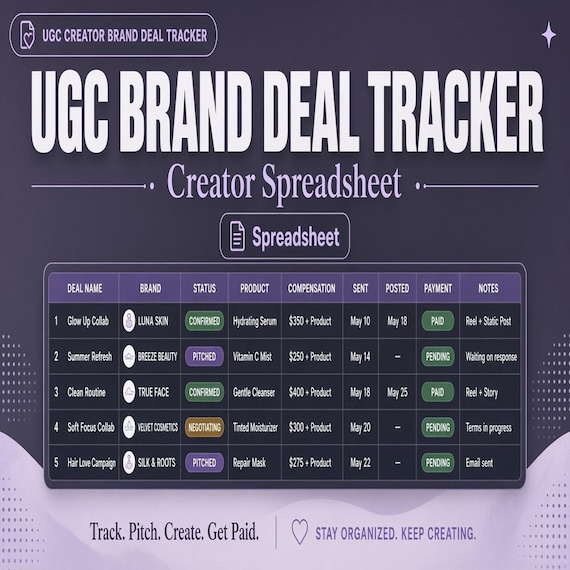
Choose a neighboring kit when the money is a different platform. The creator platform income-and-expense guide is for payouts and costs on that platform. The Etsy seller profit tracker is for listing fees and shop ads. The UGC brand-deal tracker is for invoiced collaborations. A side-hustle or profit-and-loss workbook is for a wider business picture. Do not stretch video source language over those jobs.
- Good fit: video creators who need video performance, revenue by source, a content calendar, and a monthly dashboard in one Sheets kit.
- Weaker fit: people who only needed Studio, an auto-import, or a household budget line.
- Use the creator platform, Etsy, or brand-deal pages when those platforms are the missing job.
- Use a profit-and-loss workbook when the missing job is the whole business, not the channel.
When this download may not be the right fit
A good match for video Channel Revenue Tracker Setup: Log Videos, Revenue Sources, and a Monthly Dashboard should be practical, specific, and easy to use after checkout. It may not be the right fit if you need a fully custom service, a physical planner shipped to you, professional review included with the purchase, a live video or AdSense connection, or a file format the listing does not show. Use this page as a comparison step, not as a promise that every download will fit every channel, device, or professional requirement.
It is also the wrong first download if the missing job is creator platform payouts and costs, Etsy shop fees, brand-deal invoices, or a complete bookkeeping bundle. Those kits use different pages for a different task. It is the wrong download if you expected Excel-only files with no Google Sheets path, a printed wall calendar, or a guarantee that every Partner Program source is available on your channel. The listed pieces are a video performance tracker, revenue by source, a content calendar and ideas log, a monthly dashboard, and automatic calculations.
For tax, payout, or policy questions, review video’s current help and your own records against your local requirements before relying on any number in the sheet. The files help you keep a clearer channel trail. They do not replace Studio, AdSense, a tax preparer, or a reviewed procedure.
- Check the preview images and file details before opening Etsy.
- Choose the smallest complete download that solves the real job.
- Use related product pages when another creator or shop tracker fits better.
- Review video’s current figures and your local requirements before a live month uses the file.
Before you click through to Etsy
Use the SteadyStackStudio product preview as a final check. Confirm the title, price, file type, preview image, and related downloads all point to a video channel tracker with video performance, revenue by source, a content calendar, and a monthly dashboard. If the recommended product looks close but not exact, compare the creator platform, Etsy, brand-deal, or profit-and-loss pages before leaving the site. A good match should show a Google Sheets tracker for those jobs, not a shipped planner and not a generic household budget.
Once the product page and Etsy listing agree on what is included, the Etsy click is the checkout step rather than a blind jump. Answer the video-tracking question first, compare the matching download second, then use Etsy only when the fit is clear. After checkout, run one fictional video through identity, performance, one source amount, a calendar note, and the dashboard before a live month uses the file.
This page is a comparison and setup step, not a promise that every download will fit every device or professional requirement. For tax, payout, or policy use, review the final numbers against your channel analytics and your local requirements before relying on them. The files help you keep a clearer record. They do not replace official reports, professional judgment, or a reviewed procedure.
- Check the preview images and file details before opening Etsy.
- Choose the smallest complete download that solves the real job.
- Use related product pages when another money tracker fits better.
- Review Studio figures and local requirements before a live close uses the files.
Printables used in this guide
Instant downloads from the SteadyStackStudio Etsy shop.
UGC Creator Brand Deal Tracker
A practical digital template bundle built around an urgent buyer need: Track pitches, brand deals, deliverables, invoices…
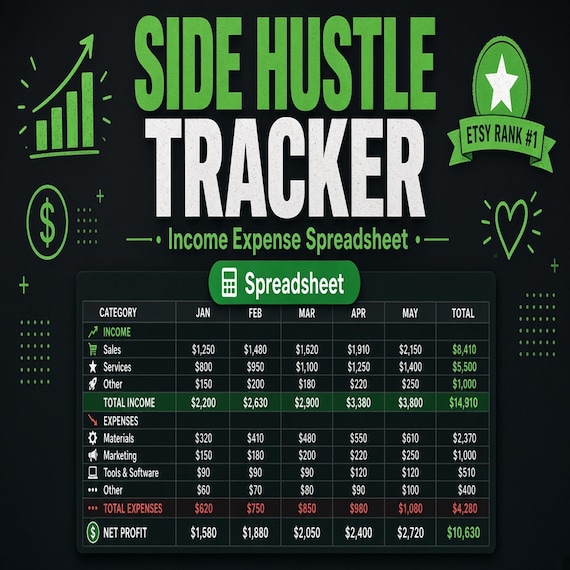
Side Hustle Income and Expense Tracker
Track a side hustle like a small business with an income and expense tracker, profit spreadsheet, mileage log and tax set-aside…
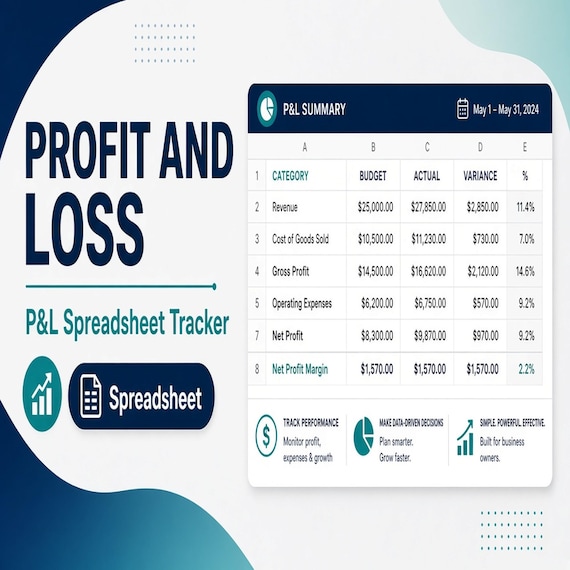
Profit and Loss Spreadsheet
Profit and Loss Spreadsheet Template, Income Expense Tracker Excel Google Sheets for small business owners who need a clean…
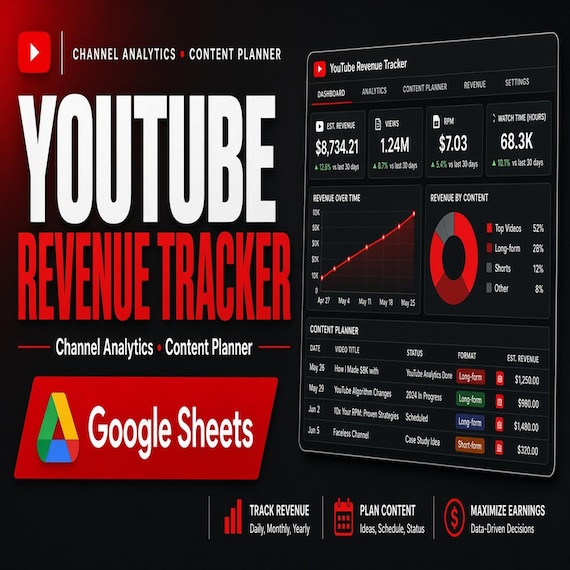
Video Channel Revenue Analytics & Content Tracker
Video Channel Revenue Analytics & Content Tracker with Google Sheets.


